Fan Control on MacBook Pro

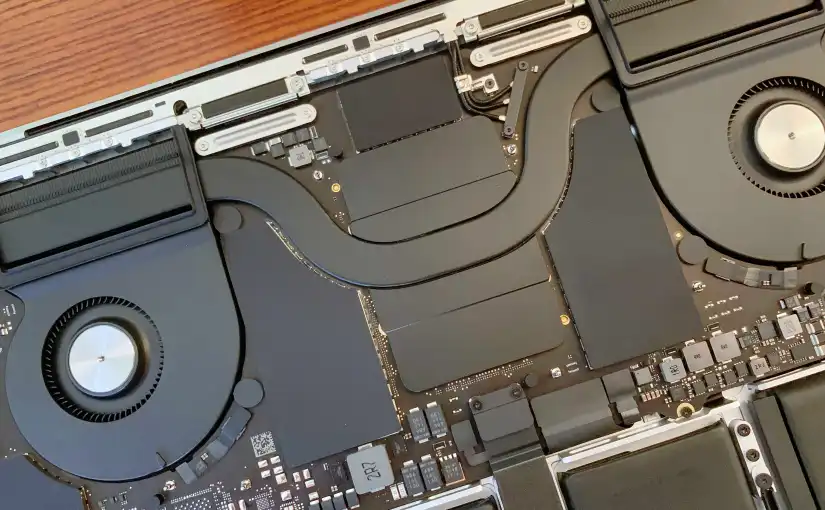
MacBooks tend to run their fans conservatively, opting to prioritise low noise at the expense of higher surface temperatures. This is particularly true for Intel Macs which can get much warmer during “normal” use unlike their Apple Silicon counterparts.

Fan control applications like Macs Fan Control of TG Pro allow you to set custom fan curves for your Mac. Setting the custom fan curve is as simple as selecting a temperature sensor to key off, then setting max and minimum temperature.

You could even set the fan curve to be less aggressive than the default, for example, by setting a constant RPM. This may be useful if you absolutely need low noise, for example if you’re recording audio during CPU intensive tasks.

At high temperatures and low fan speeds, the CPU/SoC and GPU will throttle down which keeps them within safe operating temperatures, but other components such as the battery will likely degrade faster, just something to keep in mind.

An interesting tidbit is that all modern MacBooks with two fans tend to have very different max RPM values for each fan, and both fans never seem to run at the same speed when ramping up. I suspect that Apple is intentionally spinning the two fans at different speeds to smooth out the sound signature and to prevent the high pitched noise so common on other laptops. MacBook fans tend to sound like a “whoosh” rather than a “whine”.

Turning off transparency to improve Mac OSX 10.10 El Capitan performance

I remember upgrading to Yosemite last year and immediately realising my Mac’s performance deteriorate. Battery life was significantly shorter and switching between spaces and windows was sluggish. It seemed like all the improvements to battery life and performance made in Mavericks was to offset the bloated mess that Yosemite turned out to be, and that didn’t sit well with me. Turning off transparency effects in Yosemite resulted in a drastic improvement in UI performance and general system responsiveness especially on HiDPI displays.

The El Capitan update to OSX brings numerous refinements and improvements to OSX, including much better UI performance, so I decided to turn transparency back on to see whether my Macs could handle it (a 2013 Macbook Air and 2015 13” Macbook Pro). To my surprise, even with transparency on, both Macs managed to maintain a smooth 50-60FPS while navigating the UI (mostly). So that’s the performance issue fixed, but I’m not happy yet.

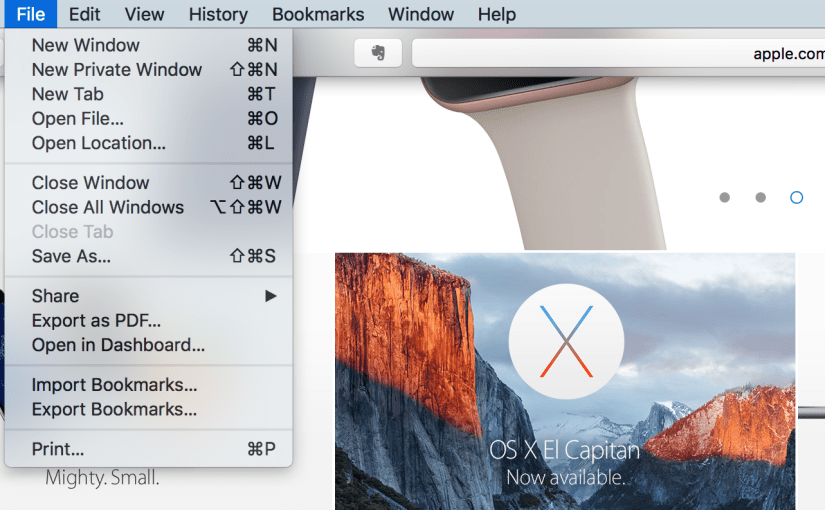
Transparency in my opinion adds very little to the user experience in OSX (and to some extent iOS). Yes, translucent side bars and window chrome that shows the content below as you scroll looks cool, but it doesn’t give you any more information about what your UI is doing. Worse still, translucency can make certain UI look worse; the menu bar being a prime example. Depending on your background, text on the translucent menu bar can be almost illegible and menu’s require you to look at them for a fraction of a second longer to make sure you’re clicking the right option.

Screen Shot 2015-10-15 at 21.07.42

I know that a menu is “on top” of a window because it is covering it, and maybe it’s casting a shadow too. Being able to see a translucent blur below the menu tells me nothing extra about what’s going on.

Then there’s the power cost of fancy translucent effects. El Capitan may have solved the performance problem, but I’m sure the system is using more power to run these effects, and the user will have to pay a battery life penalty. Mavericks made huge improvements to power efficiency in OSX, it’s a shame to waste that on fancy translucent effects that don’t serve a useful function and at times can look horrible.

The Test

To evaluate the performance cost of translucency effects, I’ll be using my early 2015 13” Retina Macbook Pro (i7, 16GB, 512GB) with display scaling set to 1440×900 (which I believe is what most people would be comfortable with, 1280×800 is not enough). I’m running OSX 10.10.1.

The test will consist of tasks with translucency on and off. I will then measure GPU utilisation with the iStat Menus utility which also shows framerate, although framerate is highly variable so you’ll just have to take my word for it that it’s 50-60FPS. I’ll try to measure GPU power, although that’s also quite variable too. This is also far from a scientific test, so take these results with a pinch of salt.

Screen Shot 2015-10-15 at 21.59.15

Right off the bat we can see that in almost every scenario looked at, GPU utilisation was considerably higher with translucency turned on. Scrolling through a thread in mail was especially taxing with translucency on, resulting in a noticeable frame rate drop. The Calendar scrolling task doesn’t have any translucent UI to trigger while scrolling, so unsurprisingly there is negligible difference in GPU utilisation. It’s worth noting that while displaying a static image (i.e. while reading a web page), GPU utilisation was essentially 0%. However, if you’re watching a Youtube video and part of the video gets caught under the window UI, GPU utilisation will increase dramatically. If you’re trying to squeeze every last drop of battery life from your Mac, leaving translucency on is like walking on eggshells.

I was unable to quantify the increased power consumption caused by leaving translucency on, but we can infer that increased utilisation of the GPU will result in higher power draw. This will be significant in everyday use, I for one know that I spend a considerable amount of time scrolling through documents/Facebook etc. When trying to extend battery life, you want to keep utilisation as low as possible to maximise the time hardware can spend in idle or power gated states, and translucency does nothing to help this.

I hope that Apple one day decides to grow out of this “Windows Vista” moment and embrace efficiency again, but for the time being, I’m glad they gave us an option to turn these effects off.

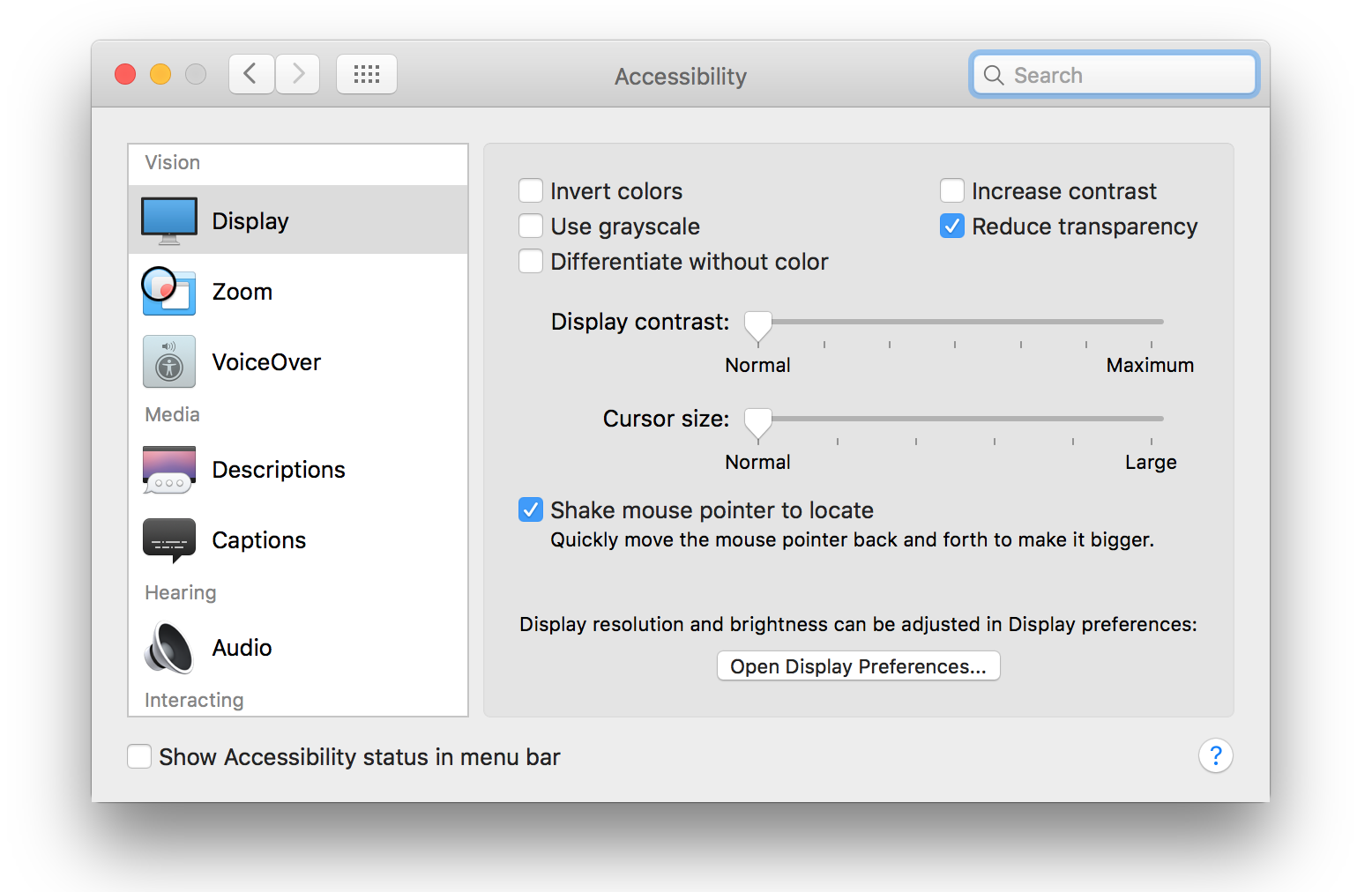
Screen Shot 2015-10-15 at 22.13.04

Oh, to turn these effects off in OSX: System Preferences > Accessibility > Display > Reduce Transparency

In iOS: Settings > General > Accessibility > Increase Contrast > Reduce Transparency

App Tamer (1.3.2) Review

Most Applications for OSX behave politely in the background, sitting idle and consuming very little CPU time. There is the exception however which continue to use CPU even while in the background and seemingly doing nothing. Not only are these applications reducing performance of foreground tasks, but the additional workload also reduces battery life and increases heat.

Screen Shot 2013 02 16 at 16 57 01

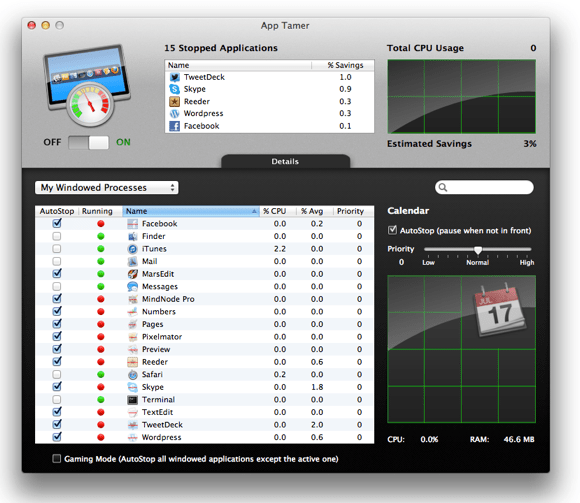
Control rampant background apps with App Tamer
Screen Shot 2013 02 16 at 18 11 01

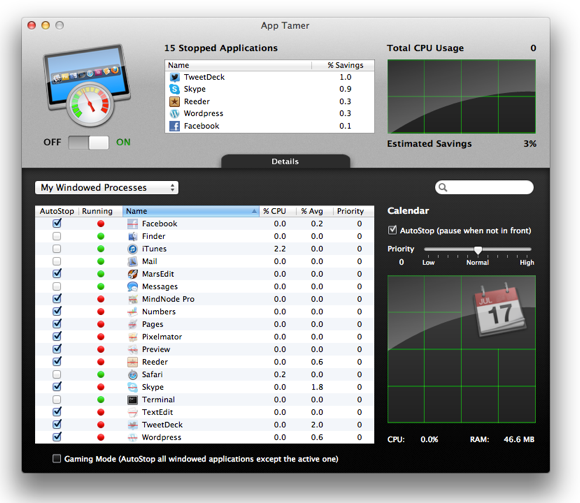
The purpose of App Tamer is quite simple, “pause” selected background apps to prevent them from using CPU, then instantaneously resume them when you need them. My workload involves having almost all of my frequently used applications open at once, and switching between them as I work. Of course, you probably won’t want to do this on a Windows computer, but the “Mission Control” feature in Mountain Lion makes it feasible work like this (8GB of RAM and an SSD probably help as well).

The problem is that normally, I only use 1 or 2 apps at a time, and those in the background are constantly using CPU. Idling on the desktop, CPU usage with all apps open is ~15% (with Skype contributing to ~7%). Idle CPU usage should ideally be closer to 5%.
Screen Shot 2013 02 16 at 17 06 04

Spinning Beach Ball

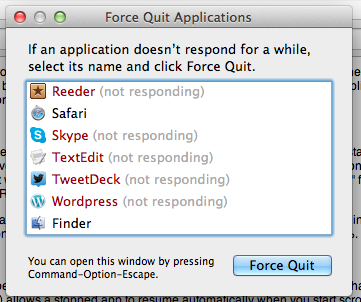
Apps which have been stopped by App Tamer will appear as “Not Responding” by the OS, and unless you switched to that particular app, it would be completely unusable. A recent update (1.3.2) allows a stopped app to resume automatically when you start scrolling, useful if you’re working on two windows side by side.

A Few Tests

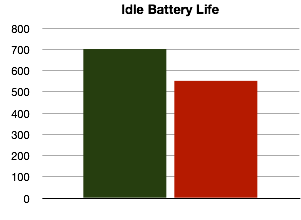
Battery Life, With and Without App Tamer
NewImage

Idle battery life shows a huge difference, with the CPU able to spend more time in C4 sleep state. This test was done on a Core 2 Duo MBP, newer Sandy Bridge/Ivy Bridge MBPs may see an even larger difference due to lower idle power consumption. 

NewImage

Light workload includes web browsing, watching a few videos etc. Still a reasonable difference in battery life.
NewImage

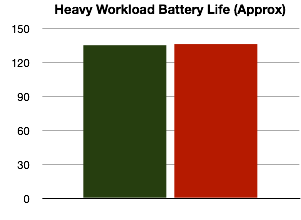
The heavy workload involves scanning a PDF using OCRKit, a task which stresses the CPU, Memory and read/writes to the SSD. Graphics is mostly idle in this test. Very little difference due to maxed out CPU, although with lower background CPU usage, the task may have fished quicker.

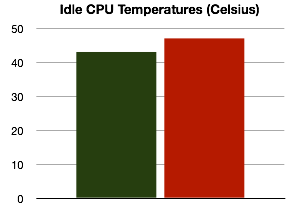
Idle CPU Temperatures (Room Temperature 26 degrees C)
NewImage

Notebook left to idle for 15 minutes at room temperature. Fan = 2000RPM.

What to Stop

Generally, you would want to stop only windowed applications that you’ve installed, and leave background/system processes alone. Apps for media playbacks such as iTunes, QuickTime, Movist etc shouldn’t be autostopped (doing so would stop playback when the application is in background).

Safari is a good one to autostop for example, leaving a Facebook tab open while in the background causes the browser to use ~7% CPU. App Tamer is smart enough to let downloads finish before stopping Safari.

Evernote can be autostopped, though if you use services which integrate with Evernote (such as clippers etc), these would “freeze” while they wait for Evernote to respond. This is also the reason why the Finder shouldn’t be autostopped.

Twitter and Tweetdeck can be autostopped safely, though obviously you lose the ability to update tweets/mentions etc in the background. However, App Tamer can “wake” stopped background apps at specified intervals to allow them to update/free memory etc.

Skype is an interesting one. While it isn’t an app I’d recommend autostopping, idle CPU usage is so ridiculously high that I find it beneficial to autostop it, saving ~7% CPU in the process. Although receiving calls becomes impossible.

Photoshop (and to less extent, Pixelmator) also have unusually high idle CPU usage. These applications are perfect for autostopping.

Fluid App

Fluid is a OSX app which allows you to create “applications” from websites. These applications are separate from Safari, allowing more granular over autostop. As of 1.3.2, support for Fluid is quite patchy but an update to fix this is on the way.

Pricing

At ~£13.14 GBP (inc VAT), App Tamer is reasonably priced for what it does. Of course, if your workflow doesn’t involve many applications open in the background, then App Tamer would make very little difference. However, I would assume most users would benefit from App Tamer, even if you don’t have a plethora of apps open. Simply having Photoshop running in the background utilises 5% CPU, and quitting/restarting the app would be slow (and probably use more power anyway), and this is where App Tamer really makes a difference. It stops apps in the background, but keeps the process open, so that the moment you need to use the app, its ready.

Find App Tamer here!

http://www.stclairsoft.com/AppTamer/