MiniLED, baby
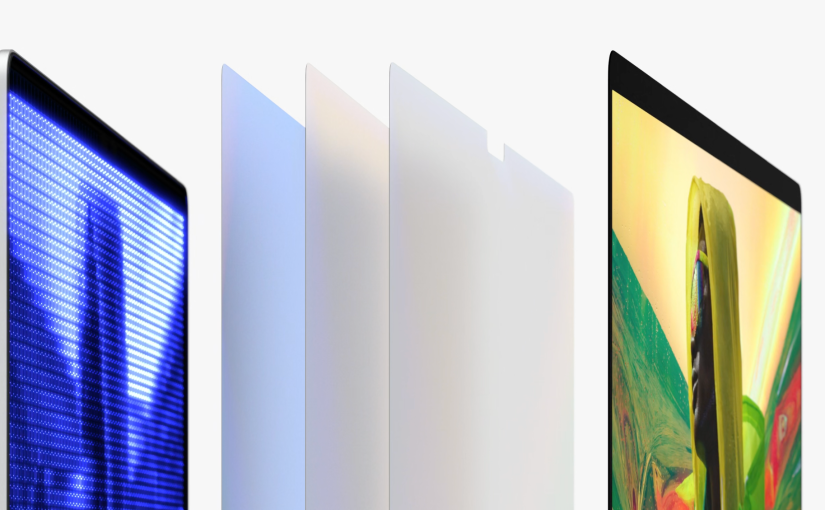
Apple’s shift towards MiniLED display technology on the 2021 M1 Pro/Max MacBook Pro’s represents a huge leap in image quality as many reviewers have found. Contrast and colour accuracy are best in class, and blooming (a common issue with Full Array Local Dimming (FALD) displays) is well controlled.
However, one aspect of MiniLED which I haven’t seen discussed in as much detail is power consumption. The platform power consumption of Apple Silicon Macs (and to a lesser extent, recent Intel/AMD based notebooks) has become so low that for many everyday tasks, it is the display, not the SOC, which is the primary power draw. I regularly notice massive battery life fluctuations on my 14 inch MacBook Pro despite workload being the same, which can be attributed to display brightness.
So how do MiniLED displays compare to non-FALD LED displays or OLED panels? Well, you won’t find the answer here, but hopefully my observations below will bring us a little closer to the answer.
Method
To obtain display power, I measured total system power consumption at idle (iStat Menus) and subtracted platform power (which was calculated as total system power with display off). A better way to do this would have been to probe the display power rails directly, but this was out of the scope of a lunch-break project (and my expertise).
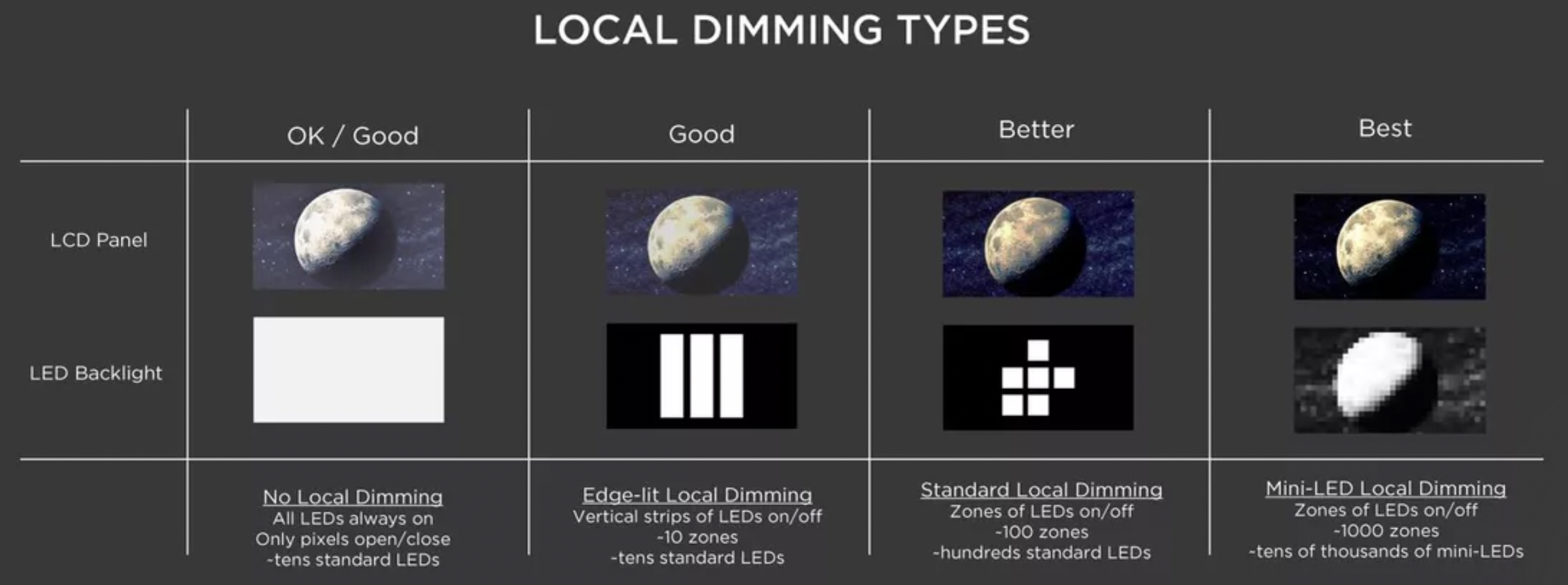
FALD displays work by dimming or turning off backlight zones in areas of the image which are dark or black, which can reduce display power consumption. Therefore, the impact of Average Picture Level (APL) was also measured by using test images with solid blocks of black and white at various ratios.
Results

As expected, higher display brightness corresponds to higher power consumption up to a maximum of ~6.1W for SDR (500nits) content. The difference between 100% brightness and 6.25% (one step above “off” on the brightness controls) corresponds to approximately 7.5 hours vs 20 hours of battery life under light usage, which is a huge range.
Power draw increases dramatically after ~50% brightness. The almost-exponential increase in power consumption at higher display brightness can be attributed in part to the luminous efficacy of LEDs, which decreases logarithmically with increasing power. Furthermore, our eyes are less sensitive to changes in brightness at higher brightness levels, and so the display brightness controls on the MacBook Pro are non-linear to accommodate for this.
Viewing HDR content pushes the display up to 1600nits peak brightness or 1000nits sustained. I don’t have a way of quantifying brightness or APL of my HDR sample videos yet, but clearly running the display at 2 or 3X the brightness of SDR will cause power consumption to skyrocket, as can be seen in the graph above.
Saving power with dark mode?
When taking APL into account, lower APLs result in lower power draw at every brightness level, which I am sure is a surprise to no-one. However, this result got me thinking, maybe we could reduce display power (and increase battery life) by changing the UI of the display to reduce APL. Fortunately, MacOS features Dark Mode which does just that.
Opinion Alert: I much prefer light mode over dark mode in MacOS and iOS, but that’s a rant for another post. Anyway, now I that I have offended half the MacOS userbase..

Well would you look at that, the difference between dark and light mode is 0.4W, which is probably the first surprising result of this post. For context, this translates to a measly 20 minute difference in battery life, and not what I expected based on the brightness/APL test graph above. My guess is that the high contrast white text causes the backlight in those areas to stay on at high brightness, which is what would have happened anyway in light mode (black text on white background). However, there are large areas of the display devoid of text which are darker in dark mode than light mode, and I suspect the small power saving I observed in the dark mode scenario would be due to this. It’s important to note that an OLED display would see a much greater relative power savings in this scenario, as OLEDs have per-pixel brightness control.
So, the MiniLED display of the MacBook Pro can be more frugal in terms of power consumption when the backlight is given an opportunity to turn off in certain parts of the display (as can be seen in the brightness/APL graph testing methodology). However, in mixed everyday use, even in dark mode, the power savings were less pronounced. Based on my brief observations, it would appear that the main benefit of Apple using MiniLED in the 2021 MacBook Pros was for image quality and HDR support, rather than power savings.


 ATR93
ATR93 