DIY Fan Replacement for the Kessil A360X Tuna‑Blue

Preamble

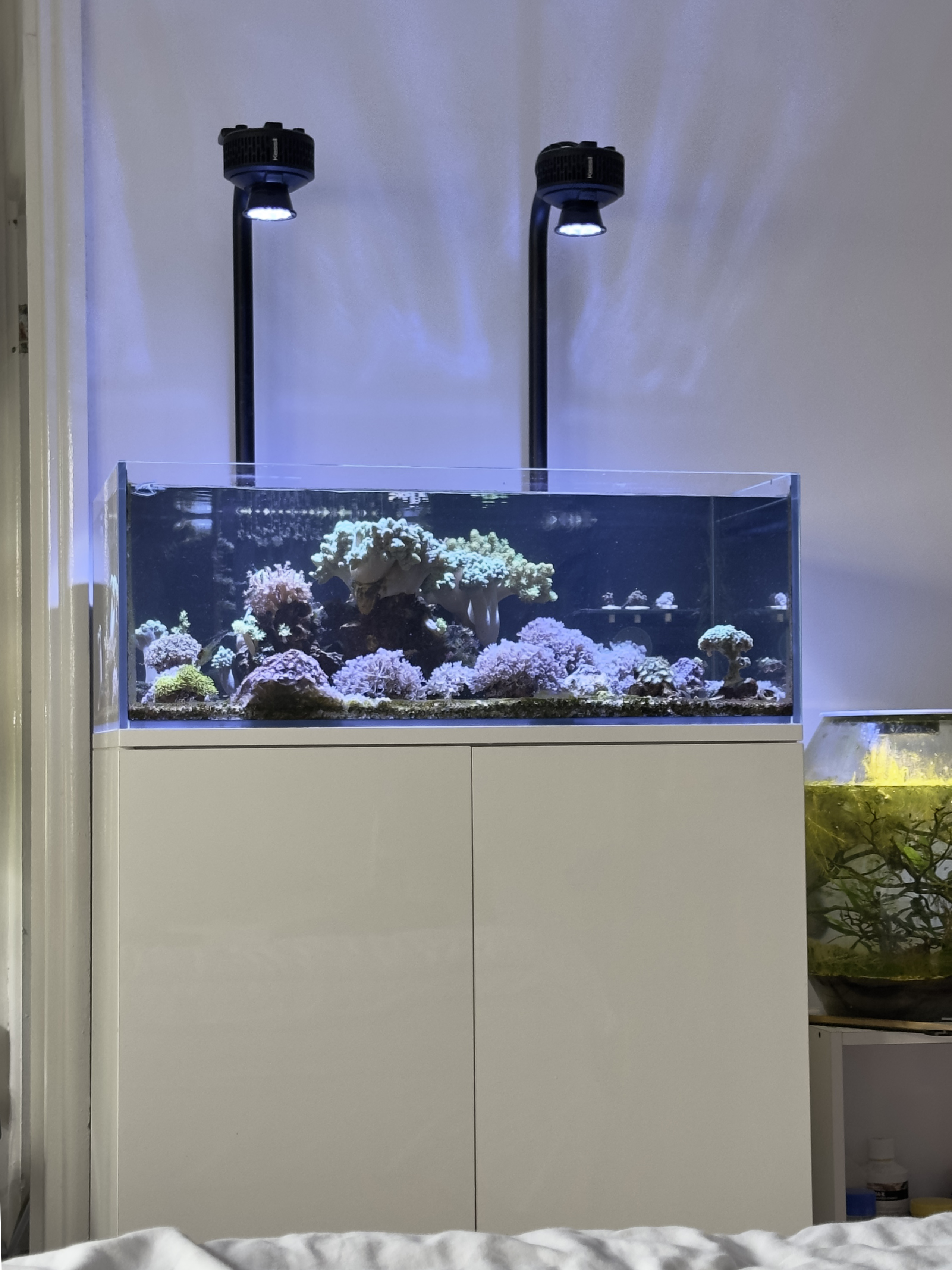
I’ve been running two Kessil A360X Tuna Blue over my reef tank for  five years, and they’re still giving me the same bright, coral‑friendly spectrum I started with. The narrow reflector lets me mount it high above the tank for easy access, not something that is available on other consumer reef LEDs as far as I’m aware. Noise is minimal, dust only needs to be blown out twice a year, and surprisingly the PAR readings remained within 5 % of new‑in‑box values even at 40 % intensity for 12 hours a day.

But one unit’s cooling fan started rattling and became noticeably loud, even though the LED and driver board were still working as expected. That’s when I decided to dig into the guts of the light and see what was going on.
The Problem

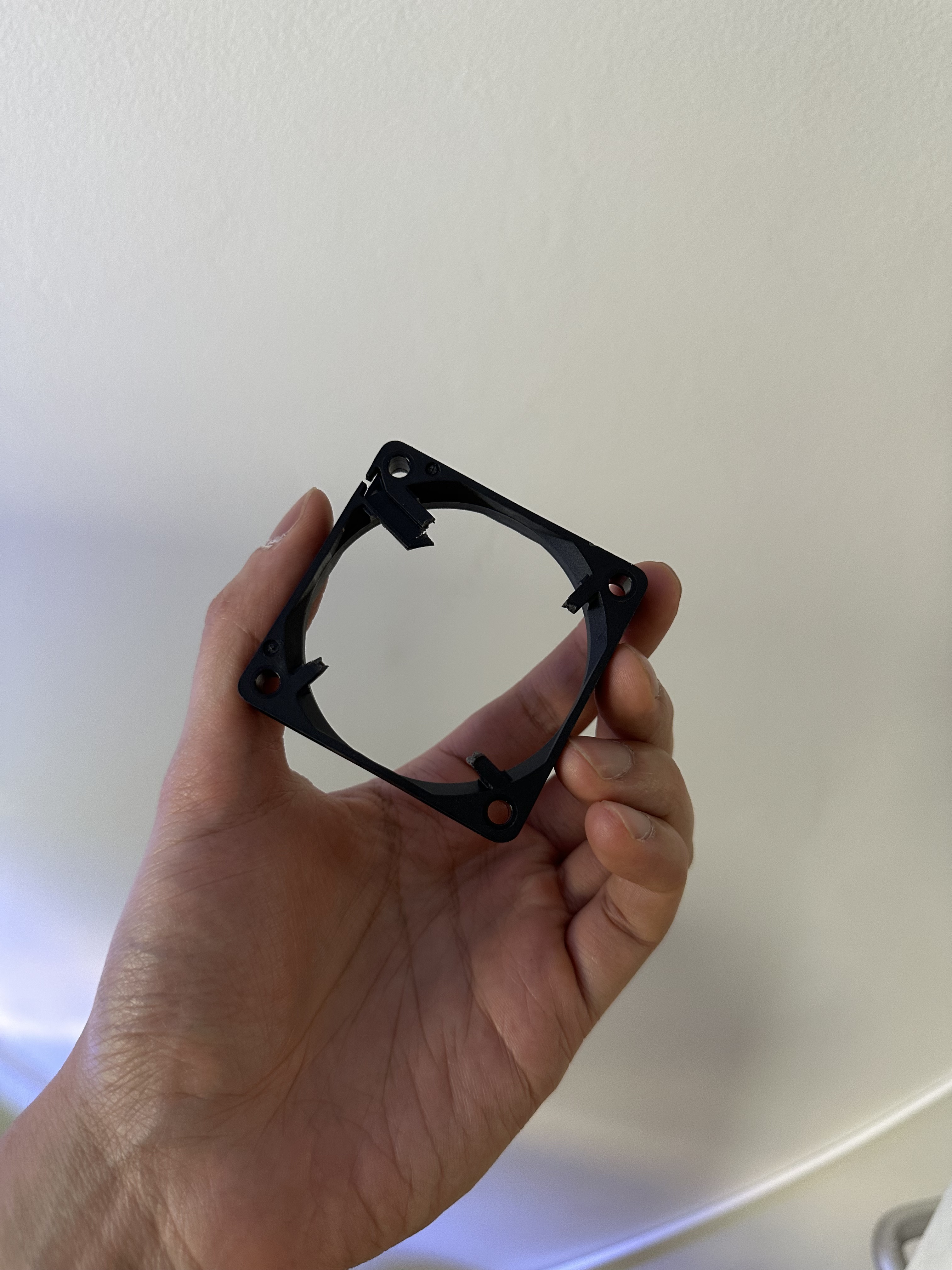
The fan failed just after five years, and the noise grew louder over time.  It turned out that the fan was a small 12 V unit drawing less than 0.3 A, but it had been mounted directly to the heatsink, a design that puts the fan motor and bearing in direct contact with heat from the LED.

Taking the A360X Apart

What you’ll needNotes
1.5mm Hex driverTo remove fan mounting screws
4mm Hex driverTo separate board from LED/heatsink
T10 Torx driverTo remove bottom cover
12V 60mm (10mm height) fan, <0.3A, 3 pinSomething like this or similar should work, https://www.amazon.co.uk/dp/B08688372Q?ref=ppx_yo2ov_dt_b_fed_asin_title
Wire cutting/stripping toolOptional, but makes stripping wires a lot easier
Solder/soldering ironOptional, you could just twist the wires together without solder too
Heat shrink tubing (or electrical tape)To hold the wires together
Needle-nose cutter or similarTo cut the new fan out of its housing

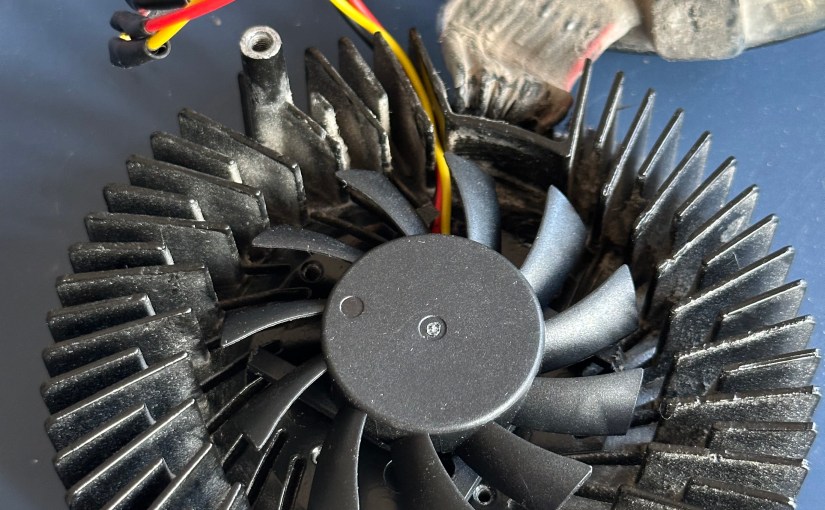
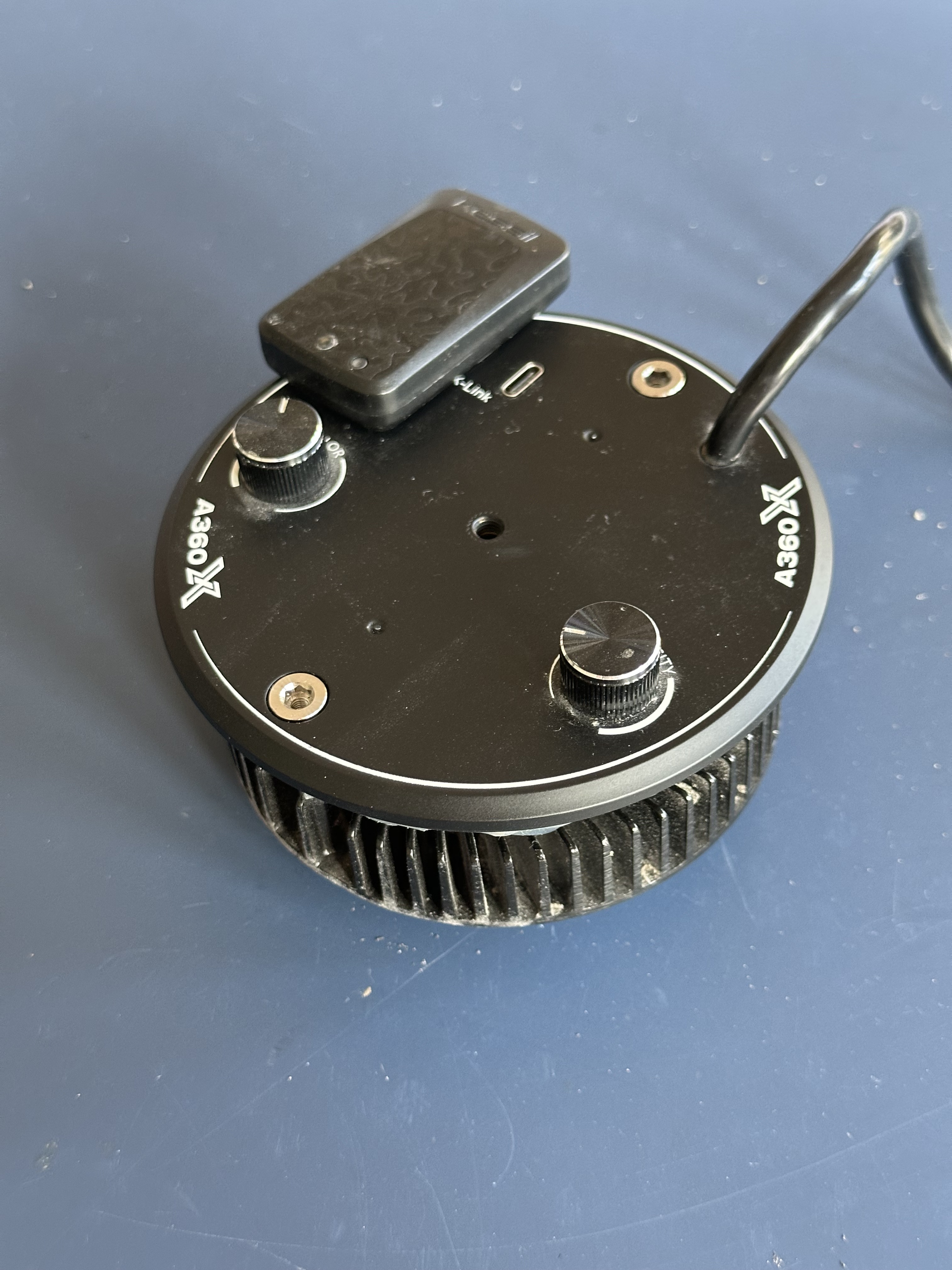
Then unscrew the front panel with a T10 Torx driver. The screws are tight, so take your time to avoid stripping them. Once the cover is off, you can unscrew the two bolts from the top of the light to separate the board and LED/heatsink (the two halves will be connected by wires). You’ll see the fan hub sitting flush on the heatsink, with three mounting screws (accessible through the fan blades). Unlike a typical CPU cooler, there’s no fan housing; the hub is directly exposed to the heat generated by the LED. The fan’s wiring is simple: a 12 V line, ground, and a tachometer pin, however the connector is inaccessible due to the conformal coating on the board. The fan’s part number (Everflow T126015SH(8)) is labeled on the hub, but I couldn’t find an exact matching replacement online.

Design Insight

Kessil’s compact design keeps the light source and fan very close together to save space compared to older models. That proximity means the fan’s bearing runs at higher temperatures than it would if it was mounted through the fan housing. Perhaps a different mounting setup can reduce the temperature at the bearing and extend its life, but for now the existing design works as long as you replace the fan when it wears out.

Sourcing a Replacement Fan

I searched for a generic 12 V fan that draws no more than 0.3 A and has a three‑pin connector (12 V, GND, tachometer). I found a suitable model (https://www.amazon.co.uk/dp/B08688372Q?ref=ppx_yo2ov_dt_b_fed_asin_title) on Amazon for £7. It’s slightly thinner than the original but works just fine.

Replacing the Fan

Cut off the plastic housing of the new fan with a needle nose cutter, keeping the hub intact and making sure there aren’t any. Apply a thin layer of adhesive to the base of the new hub, then press it onto the same spot on the heatsink where the original was mounted. Let it cure for 10–15 minutes.

Next, splice the new fan’s wires to the originals. Strip the ends of the 12V, ground and tachometer leads, twist them together, and solder or use heat‑shrink tubing. Test that the fan spins up as expected before reassembling.

Final Thoughts

Replacing the fan was surprisingly straightforward once you have the right tools and a suitable replacement. Hopefully this will keep these >£450 lights working for at least a few more years.

Happy reef‑keeping!

A 3D Printing Journey: Creating a Custom Prosthetic Leg Cover

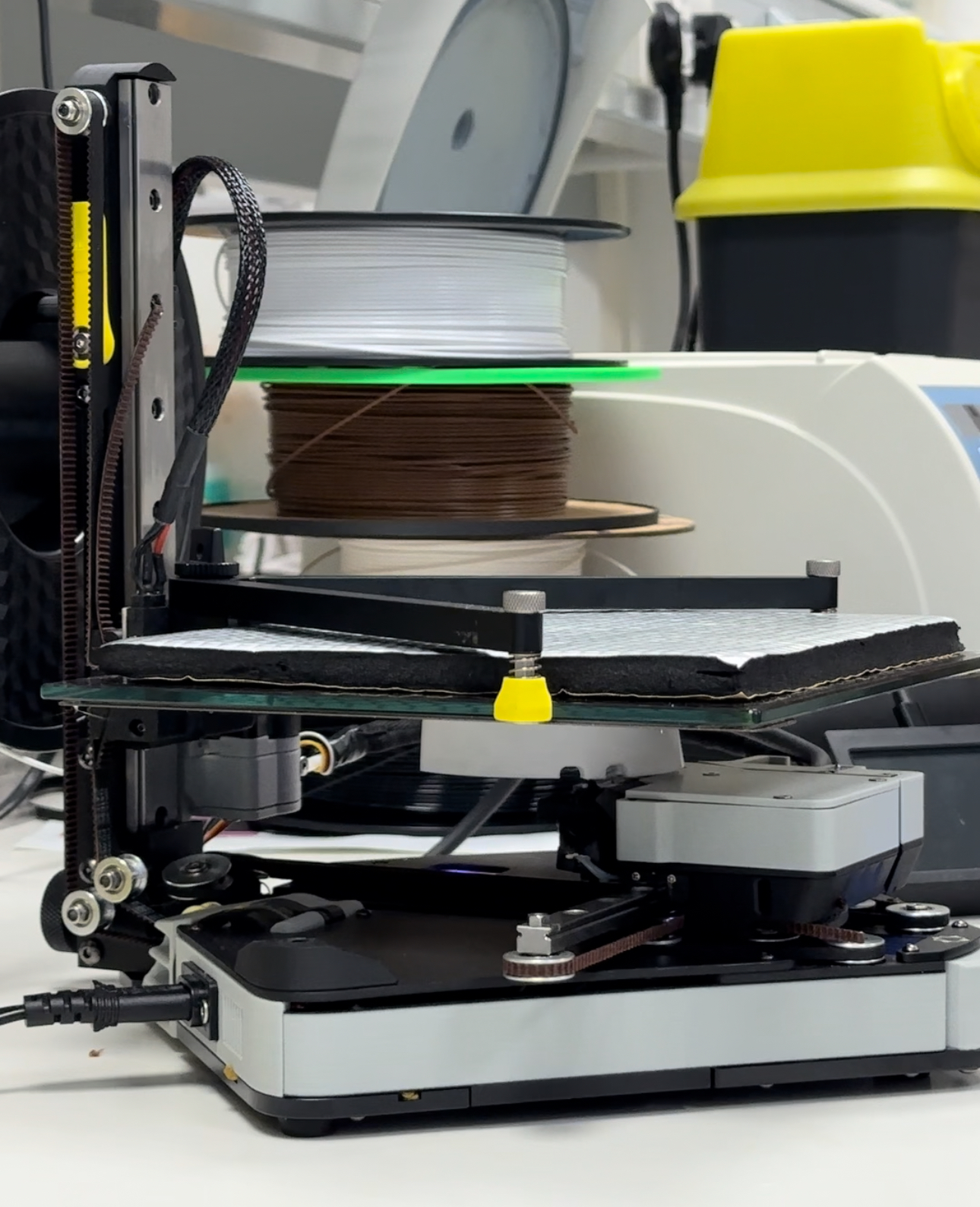
Just wanted to share this cool project I’ve been working on. So, it started when I offered to make a prosthetic leg cover for a friend. At first, I wasn’t entirely sure how I was going to do it, but why not give it a shot? I usually design and print more functional or mechanical parts, and the round organic shape of this part was going to be an interesting challenge for me. 

The Beginning: Scanning the Prosthesis

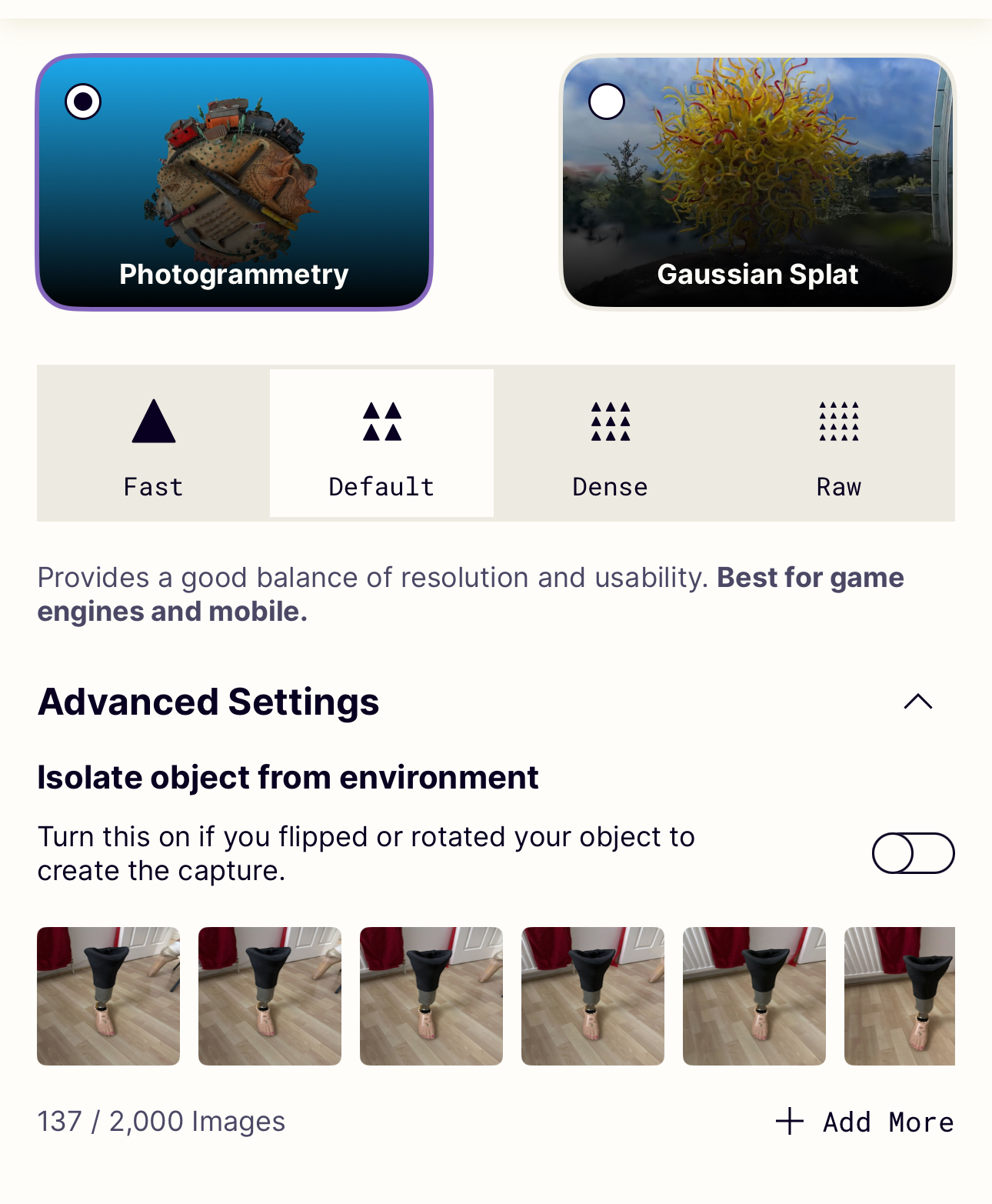
The first thing I did was to get a good model of the prosthesis. I used the Polycam app for this which can do photogrammetry. Basically, you take a bunch of pictures from various angles, and through some sort of computational black magic, it generates a 3D mesh of the object. The mesh isn’t perfect, and needs to be scaled with manual measurements, but it gives you a rough idea of how things fit together.

Designing the Cover

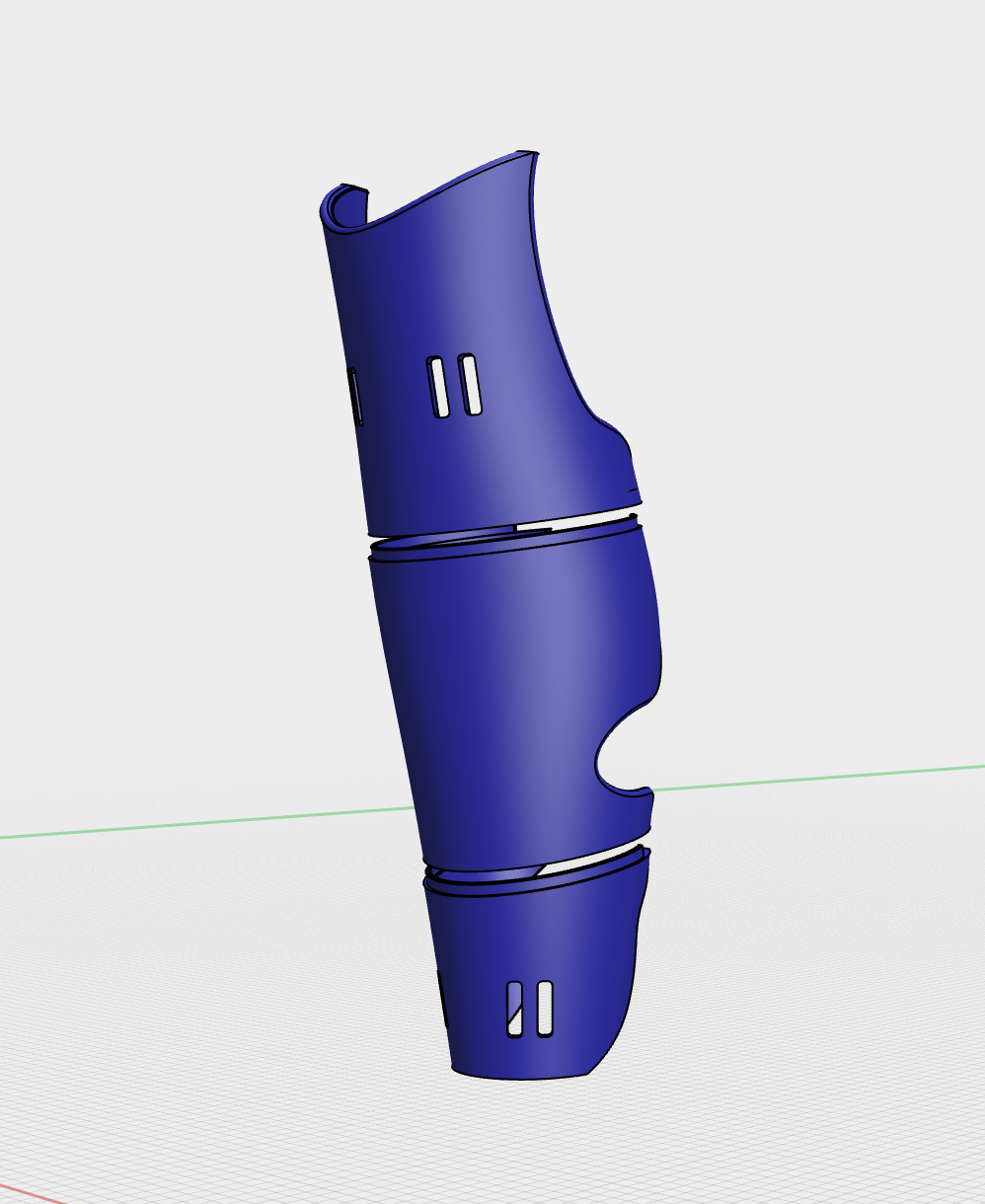
Once I had the scan, I popped it into Shapr3D and used it as a template to design the cover around. I decided to split the model into planes, then using the spline tool, I created cross-sections of the shape I wanted. Then, I lofted those together and voila, it kind of looked like a leg! After that, I hollowed it out to the right thickness and made some adjustments by subtracting sketches from the part. One cool thing about Shapr3D is the parametric history feature, so you can go back to the initial sketch and tweak it, and everything beyond that point updates automatically.

Printing Challenges

Now to the issue of turning this 3D model into a real object… I currently own a BambuLab X1C, Ender 5-S1 and one and-a-half Positron printers, none of which are large enough to print this model (one can dream of owning a PrusaXL). So I split the model in Shapr3D, designed-in some joints to glue them together and did a test print. Surprisingly, the join held up really well to a quick impact and bending test, so hopefully it would be durable enough for the final print. Plus, printing separate smaller parts means less chance of warping and less filament waste if something goes wrong.

BambuLab X1 Carbon, Creality Ender 5-S1, LDO Positron folding DIY printer

Material Matters

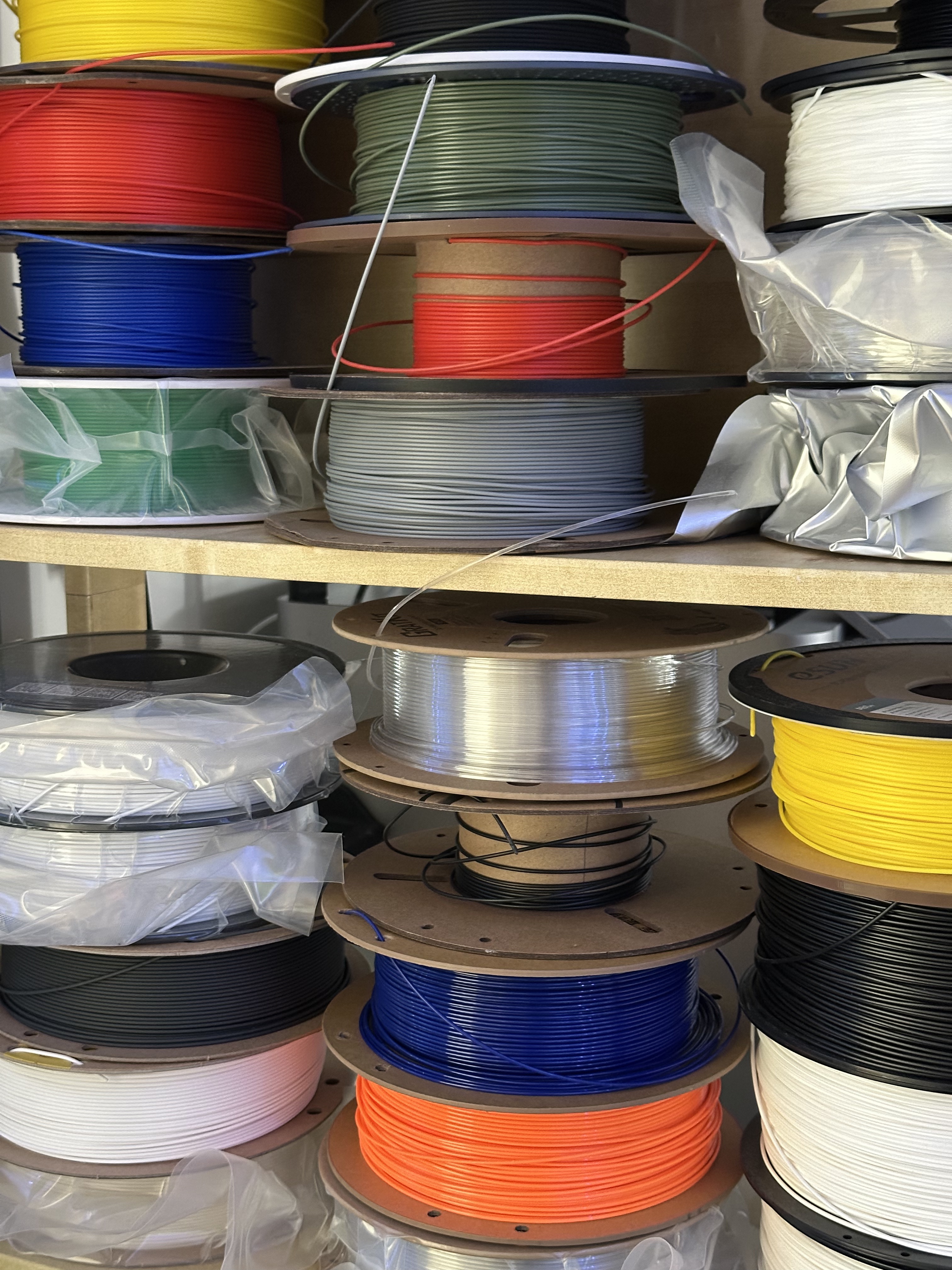
The owner of the prosthesis is pretty active, so whatever I made needs to hold up to some abuse. PLA was out because it’s brittle and gets all melty in the sun. ABS/ASA is more temperature-resistant, but printing with it involves dealing with nasty fumes. TPU was a contender because it’s tough and flexible, but for a first draft it’s slow and expensive to print. So, I went with PETG, which can be printed fast, doesn’t warp much, and is still pretty durable. At a conservative speed (15mm3/s max flow rate), all the parts took about 3.5 hours to print on the Positron. Not bad for a tiny DIY printer!

Putting It All Together

After printing, I glued the pieces together and to be honest I do think this looks really cool. I was a bit too tight with tolerance of the joints, though – 0.15mm instead of 0.2mm. Maybe next time I’ll give it a bit more room. Anyway, with some of sanding and maybe a coat of epoxy or paint, it should look quite good.

Final Thoughts

All in all, I really enjoyed this project so far. I finally overcame my fear of designing objects with organic shapes, and realised that with a bit of forward thinking design (and some glue) even a small 3D printer like the Positron can be used for large parts like this. This is still a work in progress, the design is being tweaked to fit better and I’m looking forward to exploring more materials, such as TPU or fiber-reinforced polymers to print this in. 

If you have any tips or suggestions, I’d love to hear them :)

Happy printing!

My Journey to Rio De Janeiro: Exploring the Clinical Side of TB Care and Prevention

As a preclinical researcher working in a lab environment, my day-to-day work focuses on developing new treatments, diagnostics, and vaccines for tuberculosis (TB). However, I recently had the opportunity to participate in a site visit during the 7th Global Forum on TB Vaccines in Rio De Janeiro, which gave me a glimpse into the clinical side of public health relating to TB.

I believe it’s essential for preclinical researchers like myself to be exposed to the clinical side of TB care and prevention. After all, we are developing new tools that will eventually be used in the “real world”. It’s crucial for us to understand the requirements of the healthcare system and local communities, as well as engage with them about potential new vaccines and delivery systems.

The site visit took me to three different locations: a Family Health Centre, a Surveillance Centre, and a Vaccination Centre. Each location provided valuable insights into the clinical side of TB care and prevention in Rio De Janeiro.

Family Health Centre

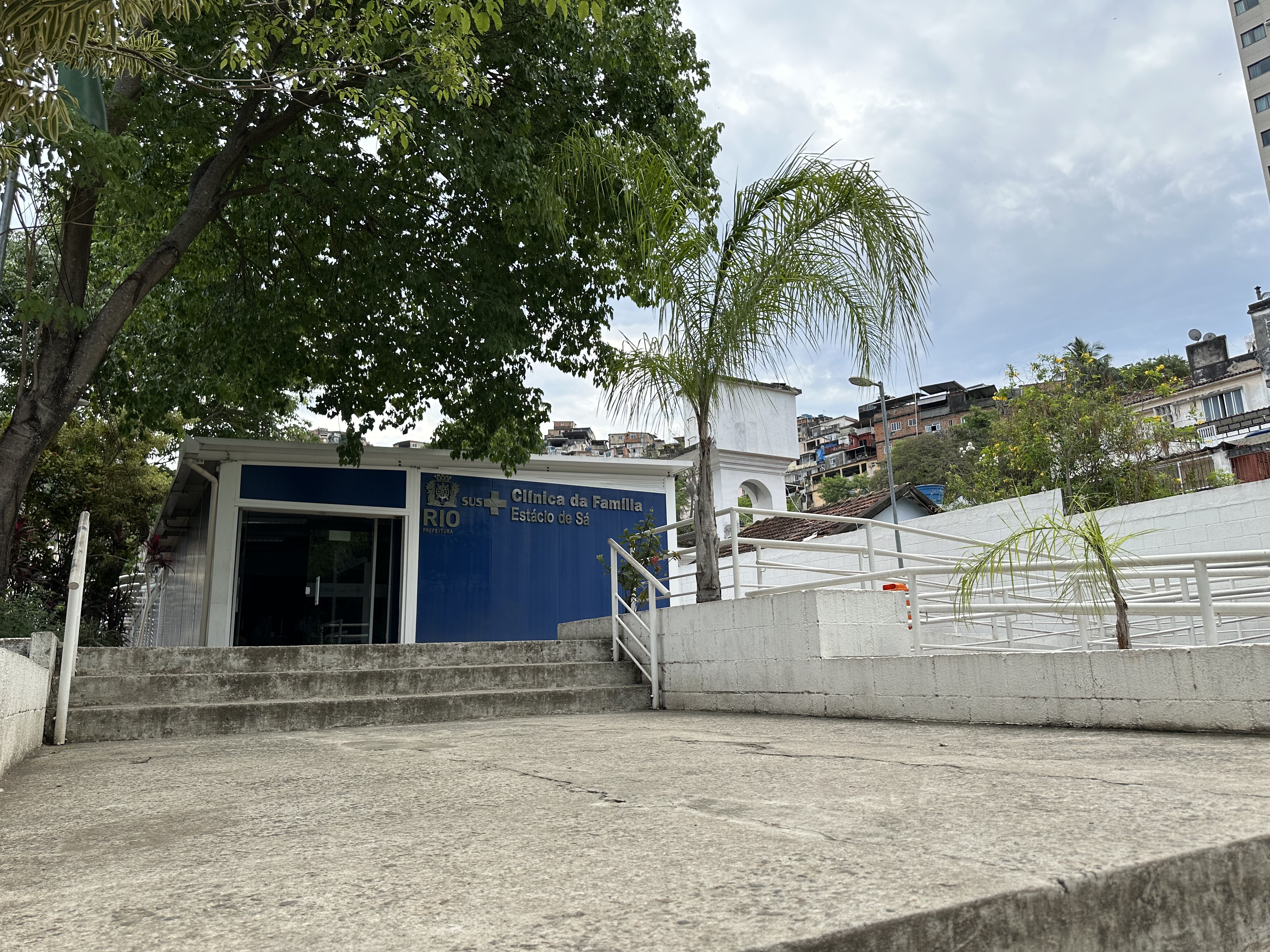
The first site I visited was the Clínica da Família Estácio de Sá in Rio De Janeiro. What struck me was the clinic’s impressive 90% treatment success rate, significantly higher than the national average of around 70%. The main reason for this success is the clinic’s ability to track patients and ensure they complete their treatment. Patients are registered at the front desk according to their community, and health agents from the same community deliver TB drugs on weekdays.

The clinic uses a range of diagnostic tools, including X-ray, TST, sputum smear, and culture. I was impressed by the clinic’s infrastructure and the health agents’ deep understanding of the local community’s needs. The fact that multidrug-resistant TB (MDR-TB) is relatively uncommon in Brazil may be due to the national health system’s control over first-line TB drugs. You can’t buy TB drugs over the counter in Brazil, so everyone, even if they’re millionaires, collect their TB medication from the clinic.

Surveillance Centre

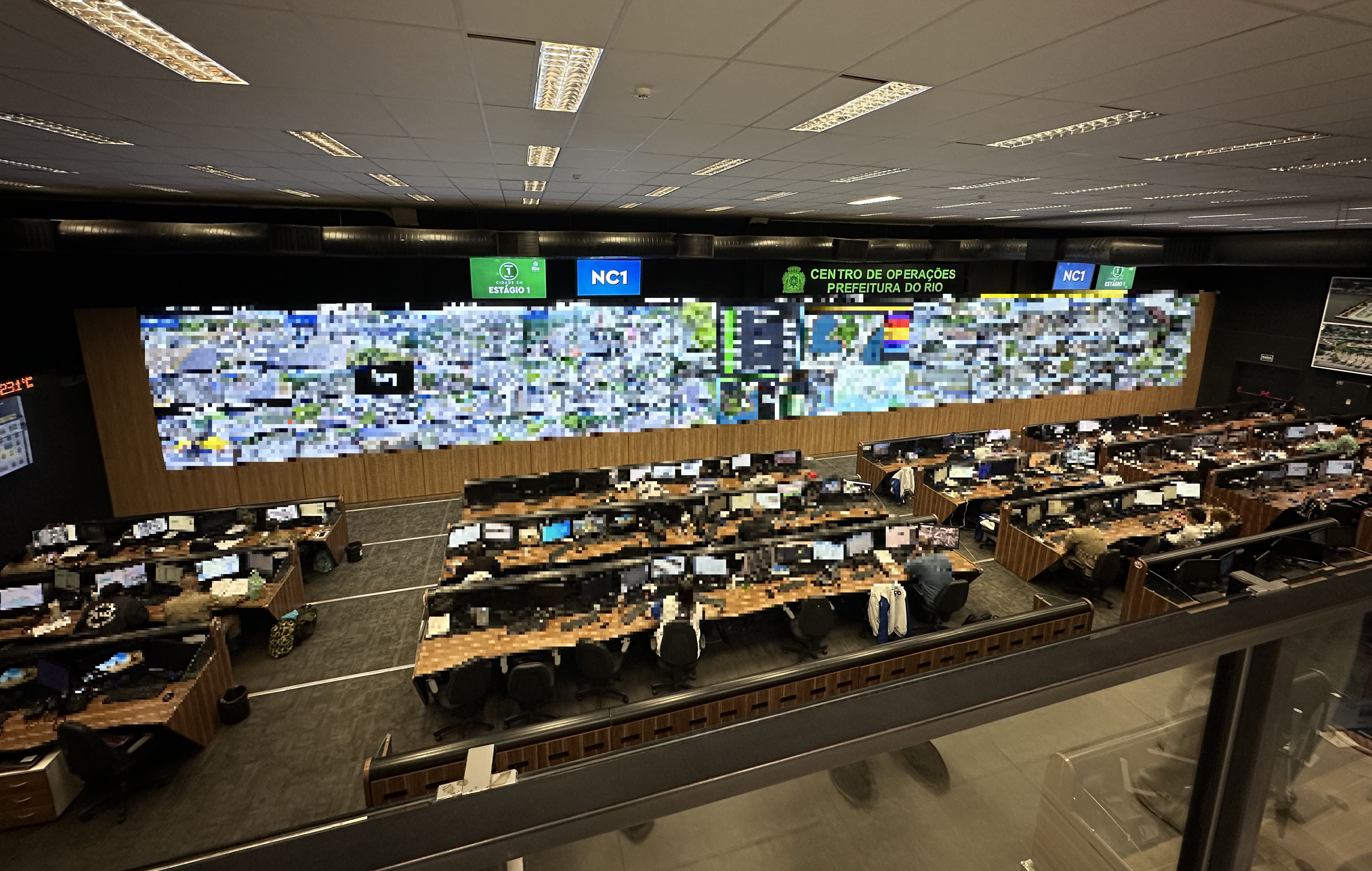
The second site I visited was at the Centro De Operaçoes Rio Prefeitura, a centralised monitoring system for outbreaks and disease surveillance. The centre’s implementation is designed to minimise additional friction on busy healthcare workers, allowing them to focus on patient care. The data is grouped by municipality, and healthcare centres and government agencies can access it.

I was impressed by the centre’s ability to predict outbreaks up to four weeks in advance, using data on temperature, humidity, and other factors. The centre also monitors traffic, temperature, and power distribution, providing a comprehensive view of the city’s public health situation.

Vaccination Centre

The final site I visited was a Vaccination Centre in CMS Rocha Maia, Rio De Janeiro. This centre serves the local community, offering vaccinations from 8am to 10pm, allowing people to visit after work or school. The centre has an outreach program that delivers vaccines directly to those who cannot attend the centre.

I was heartened by the low levels of vaccine hesitancy in the area and the enthusiasm for vaccination among people living in favelas. The centre’s use of a SUS mascot, Zé Gotinha, a character modelled after the “drop” of polio vaccine, has become a beloved symbol of vaccination in Brazil. Who says vaccines can’t be fun?

My site visit to Rio De Janeiro was an eye-opening experience that highlighted the importance of understanding the clinical side of TB care and prevention. As preclinical researchers, we must engage with local communities and healthcare systems to ensure our work is relevant and effective. I left Rio De Janeiro inspired by the dedication of healthcare workers and the commitment of local communities to public health.

Boosting Productivity with Quest 3: The Best Apps I’ve tried for Using it as a Virtual Display on Mac

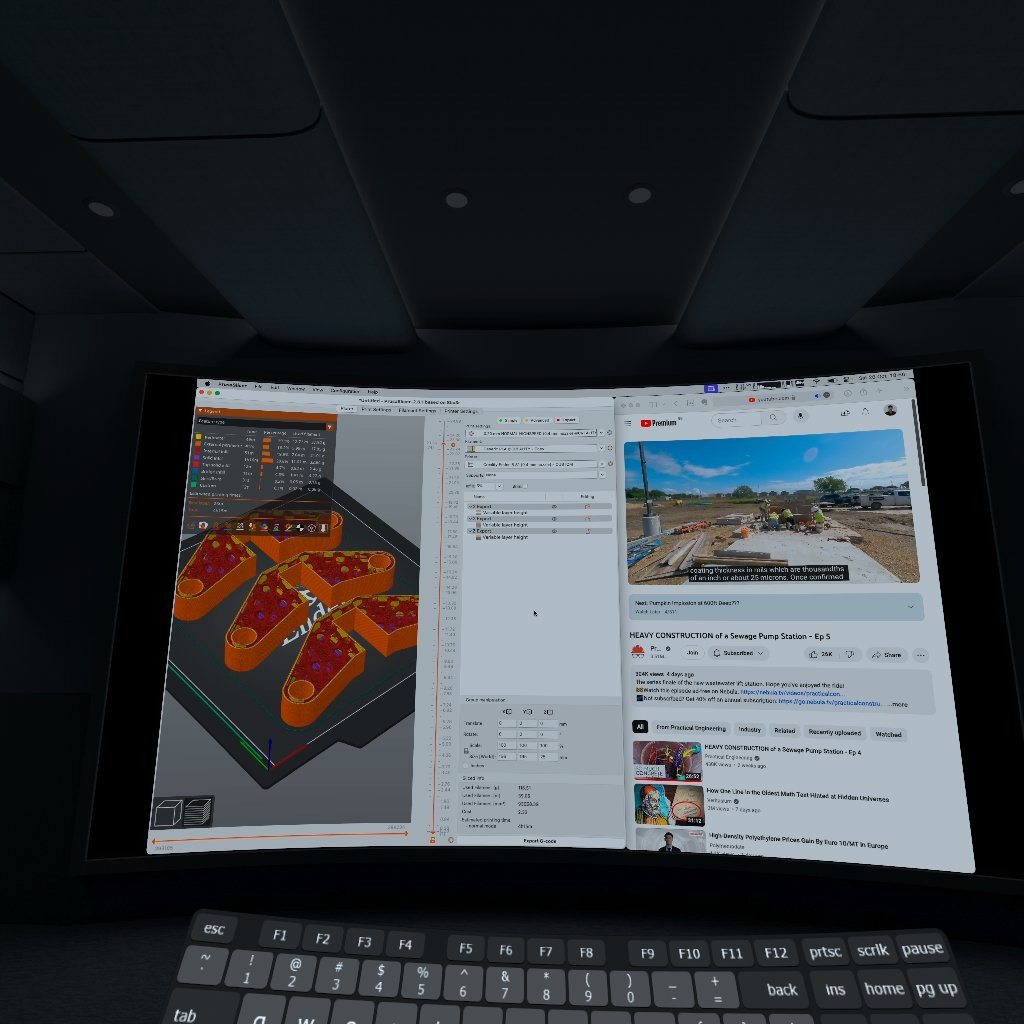
Having tried a few VR headsets in the past including the original Oculus Rift and Quest 2 and finding them uncomfortable to wear or the display quality being too poor for productivity use, I decided to take the plunge with the Quest 3 when it came out. Compared to the Quest 2, the Quest 3 has a much improved optical design (pancake lenses vs fresnel on the Quest 2) and weight distribution making it comfortable to use for extended periods of time. The display sharpness is also good enough for general productivity use for many hours a day. While the display quality isn’t as good as on a Mac (sharpness, contrast, colour accuracy, lens artefacts), the ability to use virtual displays in a virtual space is nevertheless great for focus, productivity and privacy, especially when working while travelling. 

In an ideal world…

As I use the Quest 3 mostly as a virtual monitor for my M1 Max MacBook Pro, the ideal scenario would be to connect the Quest 3 directly to the Mac and have it output a DisplayPort signal, which treats the Quest 3 as a standard external display, perhaps with some processing to keep the display fixed in virtual space (something like the XReal Air 2). Unfortunately, the Quest 3 doesn’t support USB-C alternate modes and DisplayPort input, so this is probably out of the question. Alternatively, it would be great if we could stream the virtual displays over the local network, or to a hotspot created by the Quest 3 for portable use. 

While there isn’t a native way of using the Quest 3 as a virtual display on Mac, there are many apps which can help with this function. These are the ones that I’ve tried:

Immersed

This is my go-to app for Quest 3 productivity use at the moment. Much like all the solutions in this list, Immersed uses a desktop streamer app installed on the Mac and an app installed on the Quest 3 available on the Quest store. In normal use with Mac and Quest 3 connected to the same Wifi network, the virtual desktop is streamed over the local network. There is a fall-back option which routes the streams over the internet if Mac and Quest 3 are unreachable over the local network, but this option adds significant latency as well as eating into any data allowance you might have. Finally, there is a “USB mode” which is in beta and requires you to enable developer mode on the Quest 3, and gives you the lowest latency option by wiring the Mac directly to the Quest 3 via USB-C. Immersed is free to use, and the “Pro mode” gives you more features such as support for 5 virtual displays and better team collaboration features for $4.99 a month. 

Pros:

  • Immersed allows you to create virtual monitors (up to 5 in “Pro” mode) in addition to your primary displays. Like in Horizon Workrooms, these are treated as normal monitors by MacOS, i.e. open windows will be moved to their last position on the virtual monitors upon reconnection
  • While the streaming bitrate can be set quite low (to ~1MB/s while playing video), the latency is good (~50ms depending on network conditions and stream quality). You can increase the stream quality and even retina oversampling on the Mac client for even better quality at the expense of higher network utilisation and encoding latency.
  • Immersed sometimes works without an internet connection, in a plane or hotel room for example. You can set up a personal hotspot with a phone or portable router to connect the Mac and Quest 3, then stream the virtual displays over this local network, or use the low latency USB mode. However, there are some issues and caveats to this (more in cons section)
  • You can change the size/resolution of your virtual displays
  • There is an option to turn off the built-in Mac display automatically while using the Immersed virtual displays in VR, and the built-in display will automatically turn back on when you exit Immersed or take the headset off. This is a convenient power saving feature when travelling
  • There is an option to enable a “virtual cursor” which is an overlay over the “real” cursor in the Immersed app and gives the impression that the latency of your mouse movement is lower than it actually is
  • You can arrange the virtual monitors almost any way you like, including changing the position, distance and curvature
  • There is a lot of support, tips and discussion on their Discord server which is very well organised
  • Keyboard passthrough allows you to see your desk and keyboard even if you are in a virtual environment
  • You can join public rooms where you can work and chat in the presence of other Immersed users
  • In a pinch, you can use a virtual keyboard and controllers as a mouse and keyboard, but it is not comfortable enough for daily use

Cons

  • Currently, “offline mode” feels a bit like an afterthought and doesn’t always work as expected. The Immersed app on Quest 3 and Mac needs to connect to Immersed servers every now and then to authenticate your account before you could use it, even if the virtual displays will be streamed locally over wifi or USB. The staff at Immersed have confirmed that they are looking into improving the offline experience and iron out some of the bugs currently in offline mode, but as of now (October 2023), I wouldn’t rely on Immersed if I’m travelling on a plane or somewhere without an internet connection. 
  • In USB mode, while the monitors are streamed over USBC, the Mac and Quest 3 still need to be connected to the same network (ideally with an internet connection if the apps need to authenticate with Immersed servers) in order to start the session. You can disconnect from the network once the USB streaming is in session
  • While there is flexibility in arranging your displays in virtual space, Immersed currently doesn’t do a great job of saving your arrangements or having the displays show up the same way each time. I find myself adjusting the monitors slightly every time I start an Immersed session to get the position just right. 
  • The loading time on the Immersed Quest 3 app is looooonnngg. It usually takes around 35 seconds from starting the app to getting the monitors connected and positioned before I can start working.
  • There is a feature on Quest 3 which automatically detects compatible keyboards and does a passthrough for it, however I found it doesn’t work consistently (this is more of a problem with the keyboard detection feature on the Quest 3 though rather than an Immersed issue).
  • There is no easy to use “desk passthrough” feature like on Meta Horizon Workrooms. You could set up custom passthroughs to see your desk, but these are all reset if you use the “reset positions” button, which I have to use every time I start a session to get the monitors to quickly snap to their proper positions
  • While there are many quirky virtual environments to choose from, I do wish there was a nice and simple office/desk environment like in Meta Horizon Workrooms. 

Virtual Desktop

Another popular desktop streaming app for Quest 3 which supports Mac. Virtual Desktop works slightly differently to Immersed in that you can’t set up multiple virtual monitors in VR (you are limited by the number of physical monitors you have, and multi monitor support in VR is not supported in Virtual Desktop on Mac anyway). Virtual Desktop streams over the local network, or over the internet as a fallback option. However, unlike Immersed, there is no wired/USB mode on Mac. Virtual Desktop is a one-time purchase of £14.99 on the Quest store.

Pros

  • Virtual Desktop can work consistently without an internet connection, hurrah! Both Mac and Quest 3 must be on the same Wifi network (could be a hotspot on a phone or portable router), but an internet connection is not required upon startup from my testing. This is great if you are on a plane and want to get some work done in VR. Sometimes the Quest 3 and Mac have difficulty finding each other in offline mode, but restarting the apps on either end fixes this for me
  • Rather than simply mirroring the laptops display, Virtual desktop can change the resolution of the virtual display depending on its size in VR. Not only could you get a larger display in VR, but also more display real estate
  • On the “void” or passthrough modes, you can change the size, position, distance and curvature of your virtual monitor, and these settings are saved so your monitor appears exactly the same way each time you use Virtual Desktop
  • Virtual Desktop loads fairly quickly and I can usually connect to my virtual monitors within 10 seconds of launching the app on Quest 3.
  • The quality of the virtual environments is great
  • The feature where you can use the controller as mouse input works surprisingly well (although double clicking is hit and miss)
  • Virtual Desktop supports 3D video playback, and Steam VR features on Windows although I haven’t tried these

Cons

  • The quality of the virtual display video stream is really high on MacOS, even when set to the lowest setting in the app (4Mbit/s). Playing a video on a VR monitor can easily reach 4-5Mbytes/s over the network (which is around 32Mbit/s, higher than 4Mbit/s, so perhaps this is a bug?). Using MacOS mission control or scrolling through large areas of the display results in a lot of network activity compared to Immersed or Meta Horizon Workrooms. Unless you are connected by ethernet or on Wifi 6E, there will be a lot of latency and stuttering. This limits what you can comfortably do on Virtual Desktop while connected to a personal hotspot while travelling for example. I find that for emails/word documents/spreadsheets, the added latency is tolerable. While it is great that the quality of the stream is high for home use with ethernet/Wifi 6E, I do wish there was a way of lowering the stream quality even further so latency and network performance is comparable to Immersed. Much of the discussion on Virtual Desktop Discord server revolves around optimising your network and eeking out the highest bitrates and best image quality you could get, which is great, but for productivity use, a reliable stream is more important than a marginal improvement in quality you get from higher bitrates. 
  • Virtual Desktops does not support multiple virtual displays on Mac
  • There is no desk/keyboard passthrough in virtual environments. To see you keyboard, you have to be in passthrough mode (where the virtual displays are overlaid onto the passthrough), which could ruin the immersion depending on how messy your room is
  • While using Virtual Desktop, you need to turn off your Mac’s primary display manually (by turning the brightness all the way down) while in VR if you want to preserve battery life or for privacy

Meta Horizon Workrooms

While the main feature of Horizon Workrooms is for collaboration, there is also a nice virtual desktop feature too. The Virtual Desktop environment on Horizon Workrooms feels the most refined compared to Immersed and Virtual Desktop, and the desk passthrough feature is simple and intuitive to use. Horizon Workrooms streams your desktop over the local network, with fallback to internet if the devices can’t reach each other locally. Meta Horizon Workrooms is currently in beta and free to use. 

Pros

  • There are currently 3 desktop environments available, and they’re all beautifully designed
  • The default 3 monitor setup can’t be moved/changed, but is very comfortable to use at just the right size, distance and curvature for me
  • The desktop passthrough setup is amazing and simple to use on Quest 3. The passthrough appears in exactly the same place each time so there is minimal setup every time you use the app
  • The bitrate of the stream is quite low so it is not too taxing on congested local networks

Cons

  • Horizon Workrooms does not work at all without an internet connection, even if Mac and Quest 3 are on the same local network. This is a shame as it could have easily been my daily driver for VR desktop use.
  • If you set up all 3 virtual monitors, Horizon Workrooms doesn’t remember this so you have to add the two extra monitors every time you start the app. This adds about 4 seconds to the startup time, although the app launches and connects quickly so despite this I can still get to work faster than with Immersed
  • Perhaps the streaming bitrate of the virtual desktops on Horizon Workrooms is too low, as I notice a lot of frame drops and stuttering even on an uncongested Wifi 6E network/ethernet. It would be great to be able to adjust this manually
  • You need to turn off your Mac’s primary display manually (by turning the brightness all the way down) while in VR if you want to preserve battery life or for privacy
  • You can’t change the resolution or size of your virtual displays

Final Notes

  • This post was written in late October 2023, and I’m hoping that these apps would be improved over time, especially support for offline use
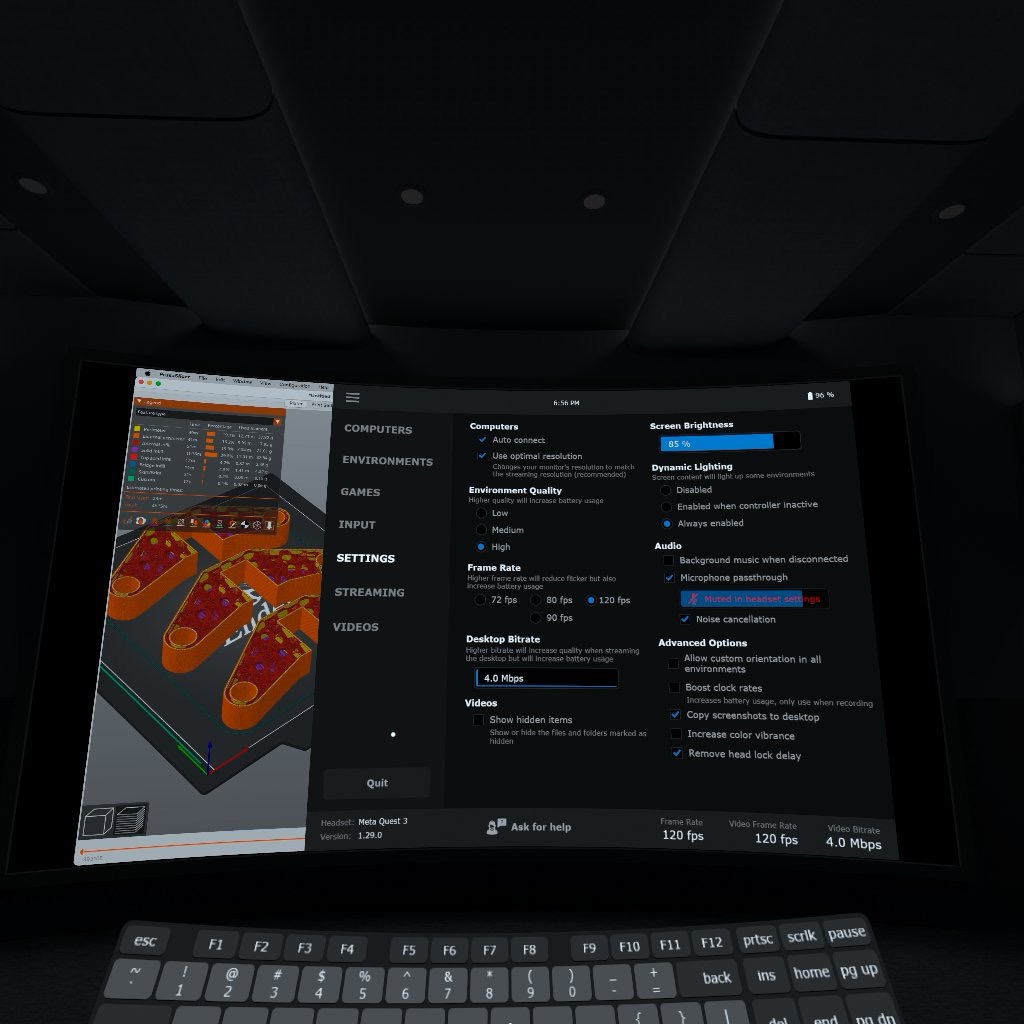
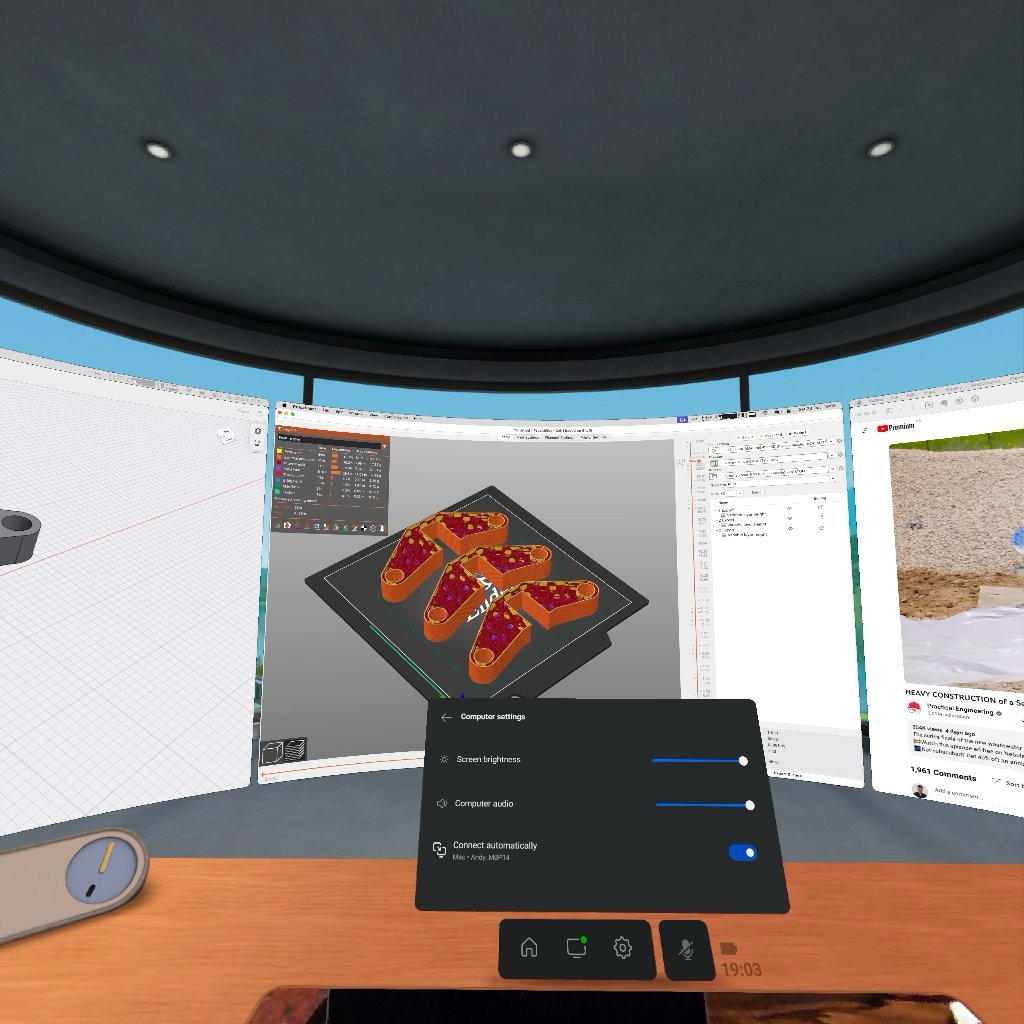
  • The screenshots from the Quest 3 shown here are a lot more pixellated than what I can see in real life. Also the field of view I can see is much wider than the screenshots, as they are from the left eye only and cropped
  • My setup is: MacBook Pro 14 M1 Max running MacOS 14.1 Sonoma, Meta Quest 3 with OS version 57, Wifi 6, 6E router running on DFS channel for 5GHz, or iPhone 14 Pro Max/Android AP hotspot on 5GHz

Re-visiting “Reduce Transparency” in MacOS

The introduction of translucency effects in MacOS Yosemite back in 2014 was a step backwards in usability and power efficiency as I discussed here. Translucency effects were computationally intensive to render and on older systems, can result in high GPU utilisation and frame drops during normal everyday activities like scrolling or browsing the web.

Fast forward to 2022 and the Mac hardware landscape has changed dramatically. We now have Apple Silicon SoCs that can achieve levels of performance only seen in high end systems with discrete GPUs, but with power consumption orders of magnitude lower. M1/M2 Macs can sustain high frame rates of >60fps in the MacOS UI despite translucency effects smattered all over the interface, and the sheer power efficiency of Apple Silicon should make these effects essentially free from a power consumption perspective. Right?

I decided to take a look at the impact of translucency effects on power consumption of various functional units of the M1 Max SoC including CPU, GPU and DRAM controller. To do this, I used the powermetrics utility (Terminal, sudo powermetrics), which helpfully lists clock speed of the CPU/GPU clusters and power consumption at regular intervals. asitop was used to estimate memory bandwidth. All non-essential background apps were quit and the system was monitored to ensure things like Spotlight indexing were not running during the test.

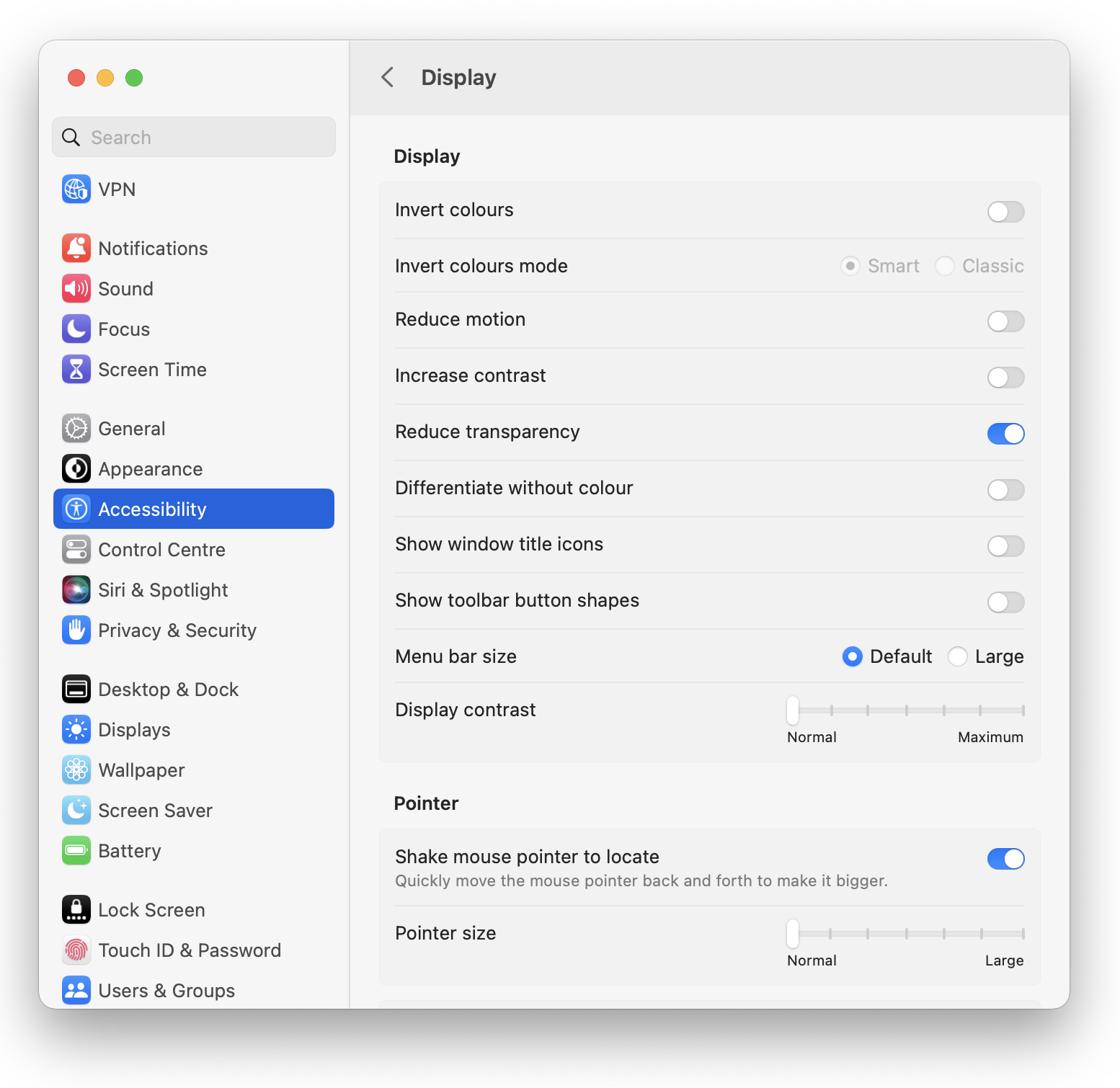
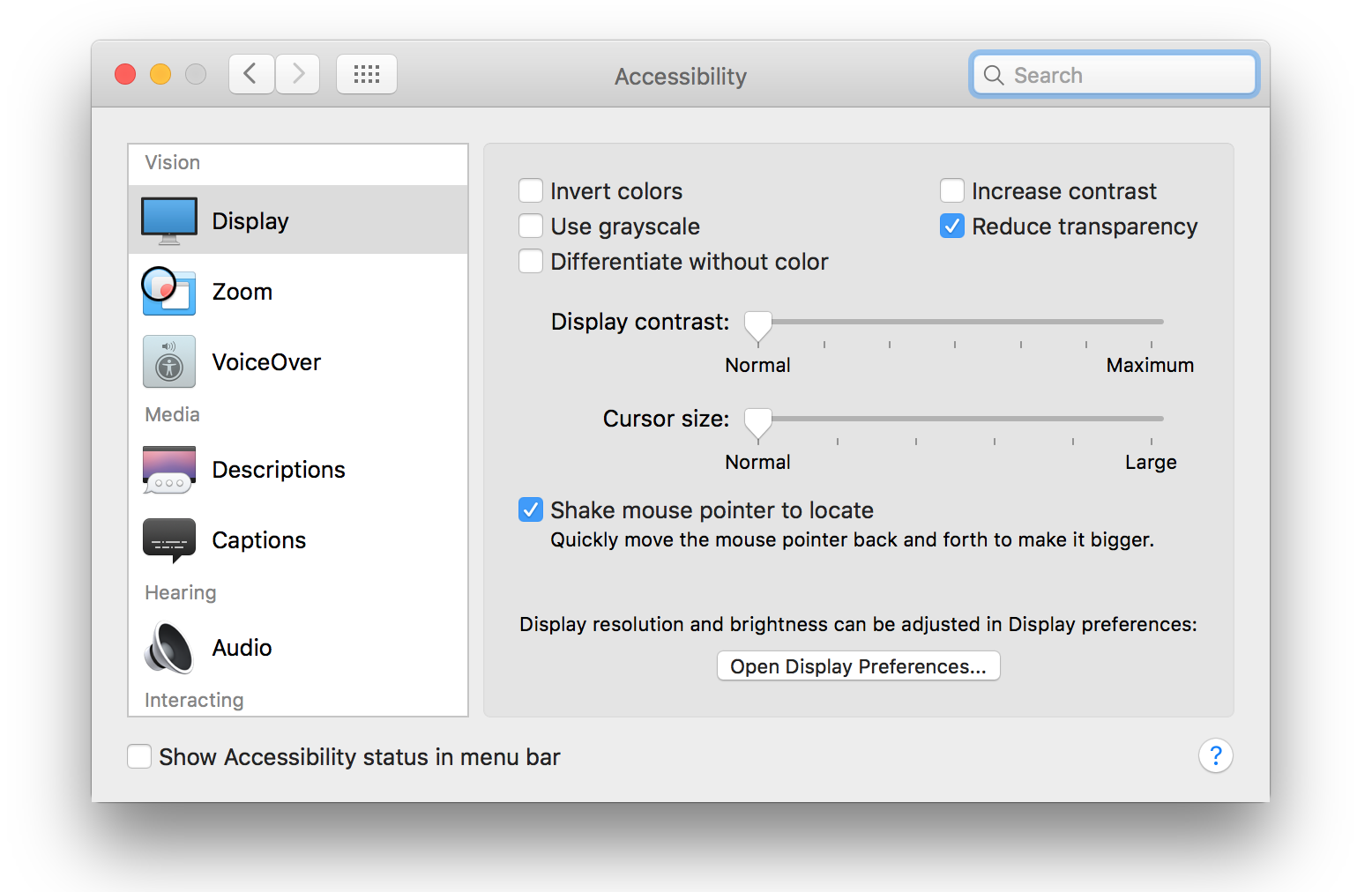
Translucency effects were toggled in System Preferences (or “System Settings” under MacOS Ventura) > Accessibility > Reduce Transparency. 

System tested: MacBook Pro 14, M1 Max 10/32, 64GB RAM

Based on preliminary testing, I found that the biggest performance/power impact of translucency effects in MacOS occur when a translucent window UI is placed over a video. In this scenario, I left a video playing in IINA (a great media player for MacOS by the way) and placed the sidebar of a Finder window over it.

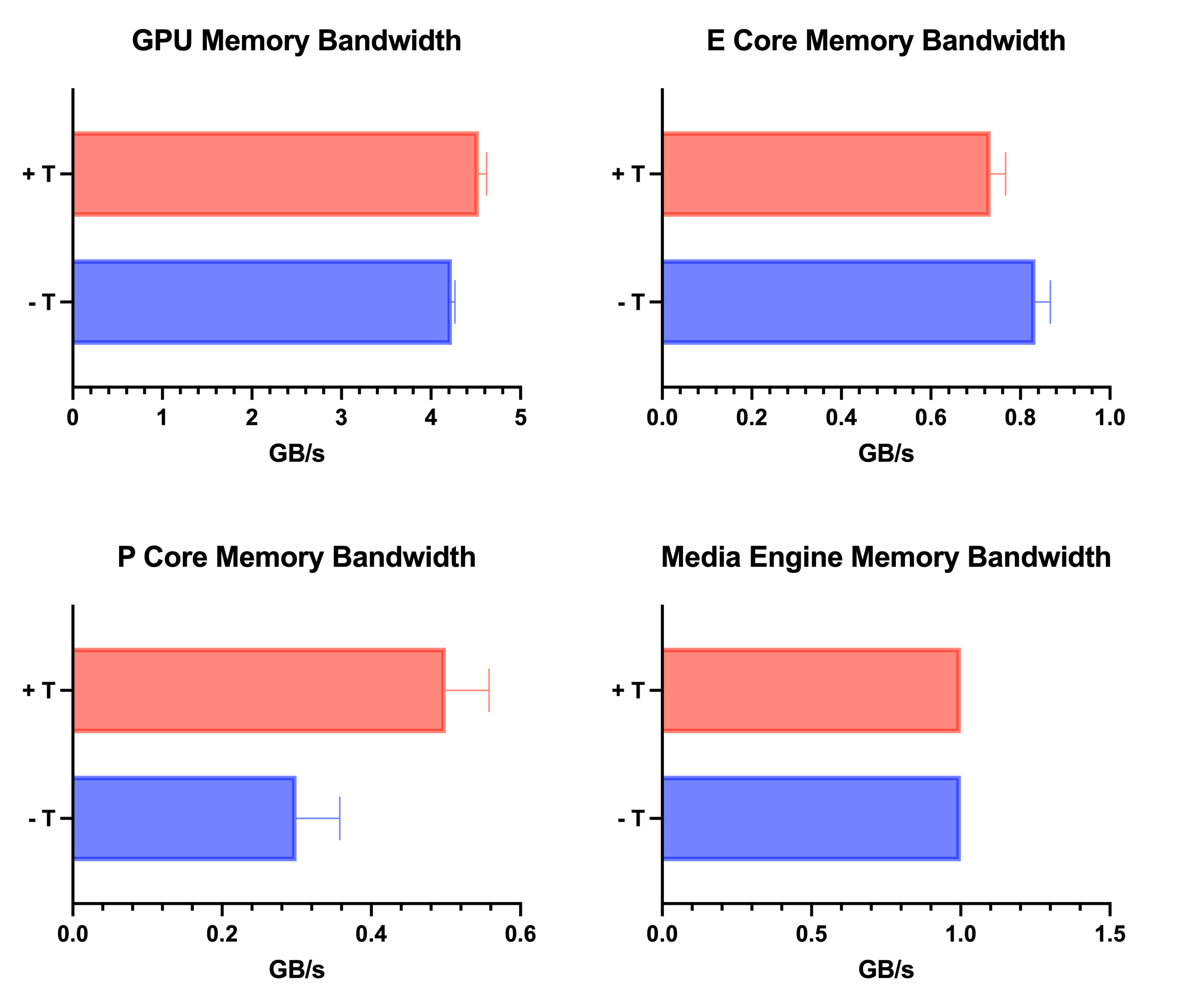
Memory bandwidth of GPU, E core cluster, P core cluster and Media Engine determined by asitop during video playback with Finder overlaid. “+T” is with transparency on, “-T” is with transparency turned off. Average of 10 readings taken during the test, error bars = SEM.

First, let’s start with memory bandwidth. We would expect that translucency effects will increase demands on DRAM due to the additional rendering of window UI, and for GPU and P Cores this is exactly what we see. Interestingly, E Core memory bandwidth decreased slightly which was unexpected, and the Media Engine was unaffected by translucency effects. Although there were differences in memory bandwidth requirements between translucency on or off, the numbers here are quite small considering that the M1 Max DRAM is capable of just over 400GB/s. To be honest, I wouldn’t expect these results to make any meaningful difference in performance of everyday workloads. 

I suspect that after usability concerns, power consumption would be a big reason to turn translucency off in MacOS. For example, in light everyday workloads, ensuring that the SoC is able to stay in idle/power gated states by reducing CPU utilisation of background tasks etc can make the difference between 5 or 9 hours of battery life. So what impact does translucency have on power consumption of Apple Silicon?

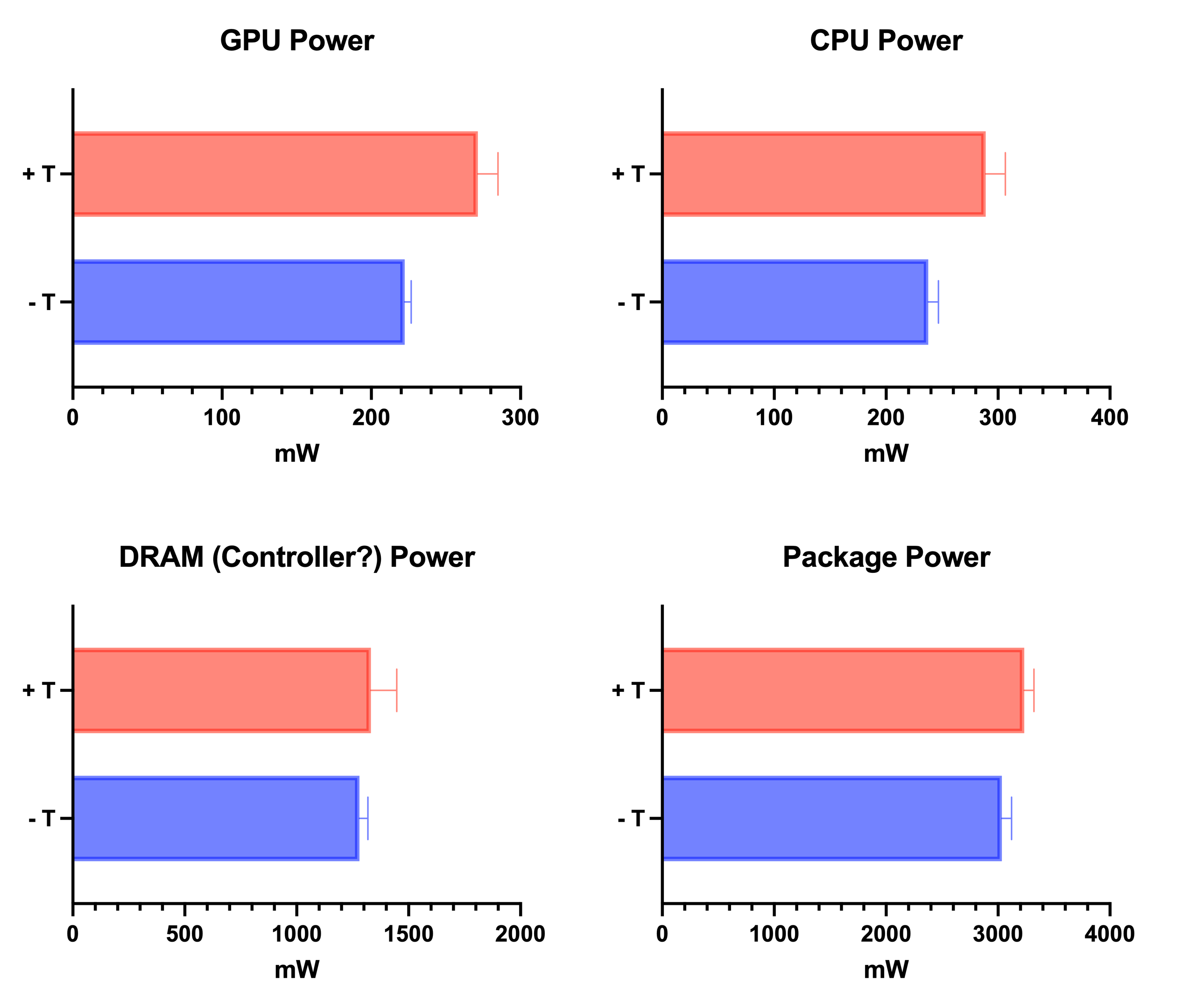
Power consumption of GPU, CPU (E + P core clusters), DRAM (controller most likely?) and package power determined by powermetrics during video playback with Finder window overlaid. “+T” is with transparency on, “-T” is with transparency turned off. Average of 10 readings taken during the test, error bars = SEM.

With translucency turned on, the power consumption of all the functional units I could see on powermetrics was higher, especially the CPU and GPU which consumed around 50mW more compared to translucency turned off. DRAM power increased slightly, although the difference was masked by variation in the readings. The impact of translucency on CPU, GPU and DRAM (as well as other blocks of the SoC which I was unable to measure) resulted in a ~200mW increase in total package power. A 200mW increase in power consumption equates to around 20 minutes less battery life on a 14 inch MacBook Pro.

“Reduce transparency” option in System Settings on MacOS Ventura

So, should you turn off translucency in MacOS?

The answer depends on your personal preference (subjective) and the impacts on system performance (a little more objective). Prior to the Apple Silicon transition, I opted to reduce transparency effects on my Intel Macs and would have recommended others to do the same based on the impacts on system performance and power consumption alone. However, those on Apple Silicon need not worry so much about the performance/power consumption impacts of translucency effects (unless squeezing every last minute of battery life is the top priority). 

Power Consumption Implications of Liquid Retina XDR/MiniLED on MacBook Pro

MiniLED, baby

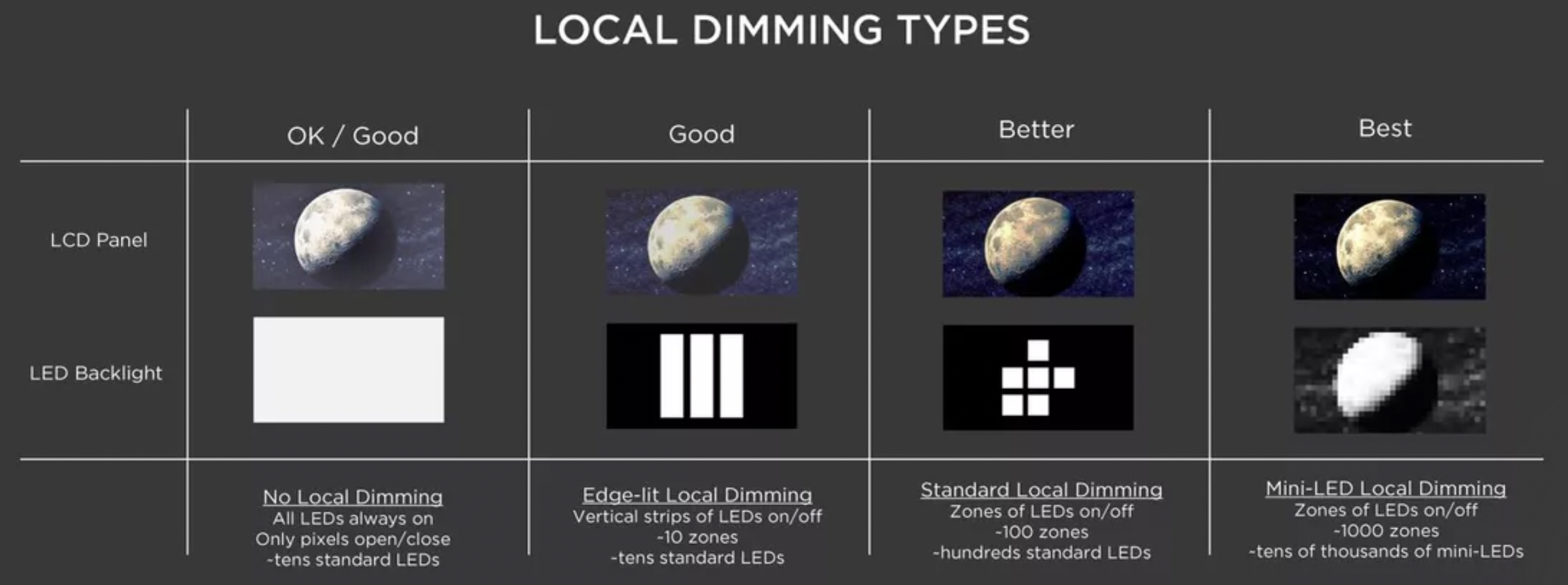
LCD Backlight comparison (source TCL, via CNET)

Apple’s shift towards MiniLED display technology on the 2021 M1 Pro/Max MacBook Pro’s represents a huge leap in image quality as many reviewers have found. Contrast and colour accuracy are best in class, and blooming (a common issue with Full Array Local Dimming (FALD) displays) is well controlled.

However, one aspect of MiniLED which I haven’t seen discussed in as much detail is power consumption. The platform power consumption of Apple Silicon Macs (and to a lesser extent, recent Intel/AMD based notebooks) has become so low that for many everyday tasks, it is the display, not the SOC, which is the primary power draw. I regularly notice massive battery life fluctuations on my 14 inch MacBook Pro despite workload being the same, which can be attributed to display brightness.

So how do MiniLED displays compare to non-FALD LED displays or OLED panels? Well, you won’t find the answer here, but hopefully my observations below will bring us a little closer to the answer.

Method

To obtain display power, I measured total system power consumption at idle (iStat Menus) and subtracted platform power (which was calculated as total system power with display off). A better way to do this would have been to probe the display power rails directly, but this was out of the scope of a lunch-break project (and my expertise).

FALD displays work by dimming or turning off backlight zones in areas of the image which are dark or black, which can reduce display power consumption. Therefore, the impact of Average Picture Level (APL) was also measured by using test images with solid blocks of black and white at various ratios.

Results

Display power consumption under various brightness and APL conditions on 2021 MacBook Pro 14

As expected, higher display brightness corresponds to higher power consumption up to a maximum of ~6.1W for SDR (500nits) content. The difference between 100% brightness and 6.25% (one step above “off” on the brightness controls) corresponds to approximately 7.5 hours vs 20 hours of battery life under light usage, which is a huge range.

Power draw increases dramatically after ~50% brightness. The almost-exponential increase in power consumption at higher display brightness can be attributed in part to the luminous efficacy of LEDs, which decreases logarithmically with increasing power. Furthermore, our eyes are less sensitive to changes in brightness at higher brightness levels, and so the display brightness controls on the MacBook Pro are non-linear to accommodate for this.

Viewing HDR content pushes the display up to 1600nits peak brightness or 1000nits sustained. I don’t have a way of quantifying brightness or APL of my HDR sample videos yet, but clearly running the display at 2 or 3X the brightness of SDR will cause power consumption to skyrocket, as can be seen in the graph above.

Saving power with dark mode?

When taking APL into account, lower APLs result in lower power draw at every brightness level, which I am sure is a surprise to no-one. However, this result got me thinking, maybe we could reduce display power (and increase battery life) by changing the UI of the display to reduce APL. Fortunately, MacOS features Dark Mode which does just that.

Opinion Alert: I much prefer light mode over dark mode in MacOS and iOS, but that’s a rant for another post. Anyway, now I that I have offended half the MacOS userbase..

Display power consumption on 2021 MacBook Pro 14 in Light and Dark mode at maximum brightness viewing a static document on Microsoft Word

Well would you look at that, the difference between dark and light mode is 0.4W, which is probably the first surprising result of this post. For context, this translates to a measly 20 minute difference in battery life, and not what I expected based on the brightness/APL test graph above. My guess is that the high contrast white text causes the backlight in those areas to stay on at high brightness, which is what would have happened anyway in light mode (black text on white background). However, there are large areas of the display devoid of text which are darker in dark mode than light mode, and I suspect the small power saving I observed in the dark mode scenario would be due to this. It’s important to note that an OLED display would see a much greater relative power savings in this scenario, as OLEDs have per-pixel brightness control.

So, the MiniLED display of the MacBook Pro can be more frugal in terms of power consumption when the backlight is given an opportunity to turn off in certain parts of the display (as can be seen in the brightness/APL graph testing methodology). However, in mixed everyday use, even in dark mode, the power savings were less pronounced. Based on my brief observations, it would appear that the main benefit of Apple using MiniLED in the 2021 MacBook Pros was for image quality and HDR support, rather than power savings.

Fan Control on MacBook Pro

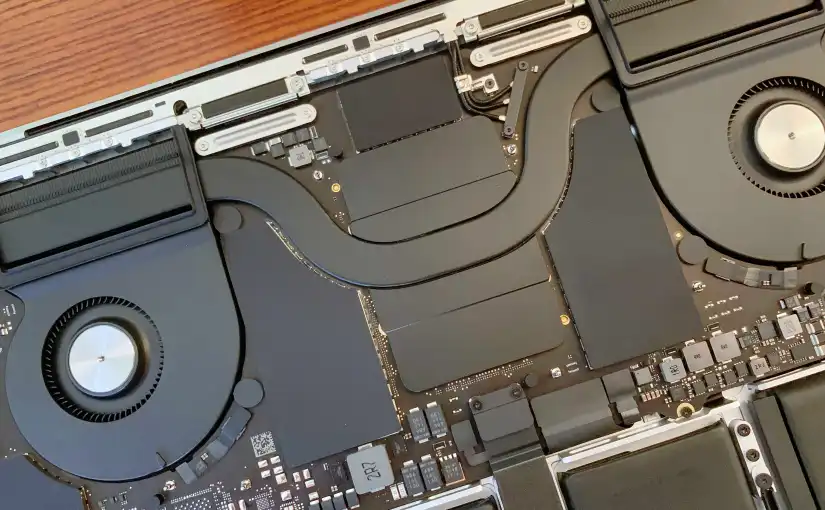
MacBooks tend to run their fans conservatively, opting to prioritise low noise at the expense of higher surface temperatures. This is particularly true for Intel Macs which can get much warmer during “normal” use unlike their Apple Silicon counterparts.

Fan control applications like Macs Fan Control of TG Pro allow you to set custom fan curves for your Mac. Setting the custom fan curve is as simple as selecting a temperature sensor to key off, then setting max and minimum temperature.

You could even set the fan curve to be less aggressive than the default, for example, by setting a constant RPM. This may be useful if you absolutely need low noise, for example if you’re recording audio during CPU intensive tasks.

At high temperatures and low fan speeds, the CPU/SoC and GPU will throttle down which keeps them within safe operating temperatures, but other components such as the battery will likely degrade faster, just something to keep in mind.

An interesting tidbit is that all modern MacBooks with two fans tend to have very different max RPM values for each fan, and both fans never seem to run at the same speed when ramping up. I suspect that Apple is intentionally spinning the two fans at different speeds to smooth out the sound signature and to prevent the high pitched noise so common on other laptops. MacBook fans tend to sound like a “whoosh” rather than a “whine”.

Vietnamese Cardinal Minnow Spawning Indoors

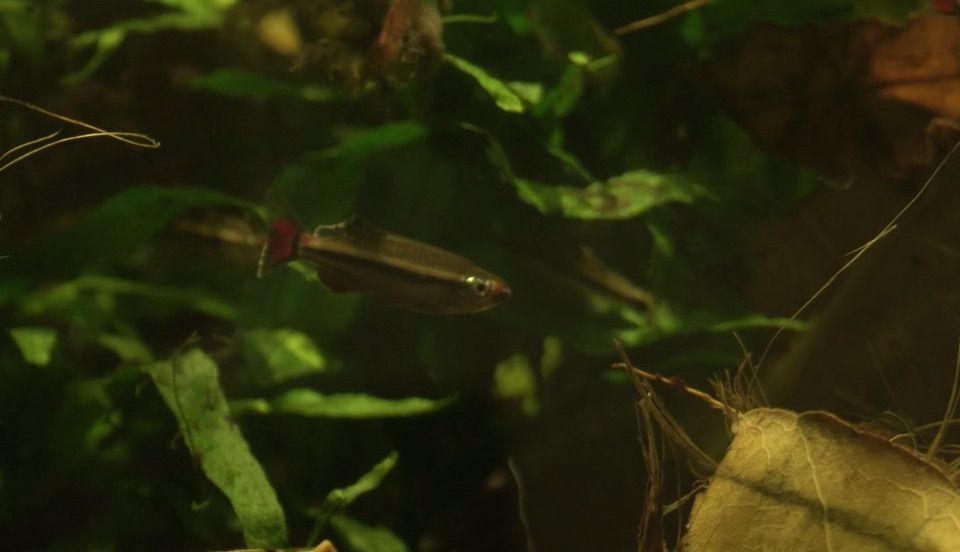
The Vietnamese Cardinal Minnow (Tanicthys micagemmae) are one of my favourite fishes in the hobby (no bias due to their country of origin). They’re very easily overlooked when compared to more flashy and iridescent fish and don’t stand out too much in an aquascape, but upon closer inspection their colours and behaviours are a joy to watch in a home aquarium. 

Due to habitat destruction, Vietnamese Cardinal Minnows as well as other closely related species (some of which have only been described a few years ago) are virtually extinct in the wild. 

Being similar to the more common White Cloud Mountain Minnow (Tanicthys albonubes), Vietnamese Cardinal minnows are one of the easier egg scattering fish to breed in captivity compared to other species such as Cardinal Tetras.

My previous experiences with spawning Vietnamese Cardinal Minnows

I’ve had success spawning Vietnamese Cardinal Minnows outdoors during the summer in tubs and outdoor tanks which were usually very overgrown with floating and submerged plants and receiving plenty of live food in the form of flying insects and mosquito larvae. I normally set up a tub or tank outside in the spring, monitor the temperature and move a group of ~6 minnows outdoors when nighttime water temperatures stay above 16°C. By the end of summer the tank would be swarming with tiny minnows. 

When I initially set up my indoor blackwater riparium, the Minnows would spawn and there would be fry everywhere. However as time passed, although the spawning behaviour continued, I no longer saw any new fry for several months. This was probably due to the population of shrimp and worms/invertebrates becoming more established and eating the eggs and newborn fry which are vulnerable in the first ~72 hours of life. So this year to keep the population of Minnows ticking over (and to keep myself occupied during lockdown), I decided to spawn the Minnows indoors. 

Spawning tank setup

Tank: 23L (~5 gallons)

Water parameters (water from main display tank which receives RO water remineralised with tap to target KH 50ppm). As of April 2020: TDS 150ppm, GH 120ppm, KH 80ppm, pH 6.5 – 7, NO3 <10ppm.

Feeding adults: Minnows were conditioned in the main tank with live/frozen/dry foods for around a week prior to moving into spawning tank. After a week of food abundance, the fish became picky and started refusing dry foods (seems like they’ve truly reverted to wild fish by this point). In the spawning tank they were fed frozen foods, but amount was limited to avoid excess waste in the spawning tank. 

Feeding fry: Infusoria culture, Liquifry No. 1, Spirulina powder, Microworms and very finely ground dry food. 

Filter: Fluval Edge HOB (cover intake with fine sponge to prevent fry/eggs being sucked in). Set to lowest flow rate, outlet flow should be a trickle. Fill with biological media from main tank.

Heater: Bog standard 50W heater set to 23°C.

Substrate: JBL sintered glass bio media. I had this laying around but coarse gravel/marbles will work too. The substrate should be coarse enough for eggs to fall through and out of reach of the adults. Avoid gravels containing crushed coral or calcium carbonate as this will increase water hardness and may discourage spawning (more for pickier species). 

Spawning media: I used coconut fibre, it’s cheap and readily forms aufwachs and infusoria providing fry with first food. Can be disposed of by composting or re-used for houseplants. I also see a lot of people using Java moss, which is a great spawning medium but risks introducing predators into the spawning tank depending on where it came from. You can also buy spawning mops that can be washed and re-used. Spawning media should be arranged in a way that provides plenty of cover for the minnows to “do the nasty”. 

Plants: Water lettuce and hornwort. Any floating plant will do, important for providing surface cover for newborn fry and direct uptake of ammonium from waste. Roots also provide surface area for bacteria/Infusoria to grow which the fry can graze on. 

Light: Cheap-o LED from Amazon, mainly to keep the floating plants happy and to simulate daylight for spawning behaviours. 

Indoor spawning diary

Day 1

Introduced 8 adult minnows (2 males and 6 females). All fish were healthy with no visible sign of disease. In an attempt to maintain wild-type characteristics of my fish, I chose them from my main display tank at random while also including the dominant male and female.

The fish were introduced to the spawning tank in the evening. Their colours were noticeably faded and the group showed very tight schooling behaviour while being very skittish. 

Day 2

In the morning the minnows still exhibited tight schooling but colours have returned. Spawning activity was seen in the evening where males would display and lure females into spawning media, followed by a characteristic “T” shape spawning behaviour where the male would wrap himself around the female before both releasing eggs and sperm. Bow chicka wow wow. 

Day 3

Minnows were generally bolder and schooling less frequently. Males were much more aggressive with their displays and their spawning territories overlapped, resulting in many spawning opportunities being interrupted by the competing males. This 23L tank might be too small for a spawning group with 2 competing males. 

As the first batch of eggs should be hatching soon (if any present), all adult fish were moved back to the main display tank in the evening to give the newborn fry the best chance of survival. 

Day 4

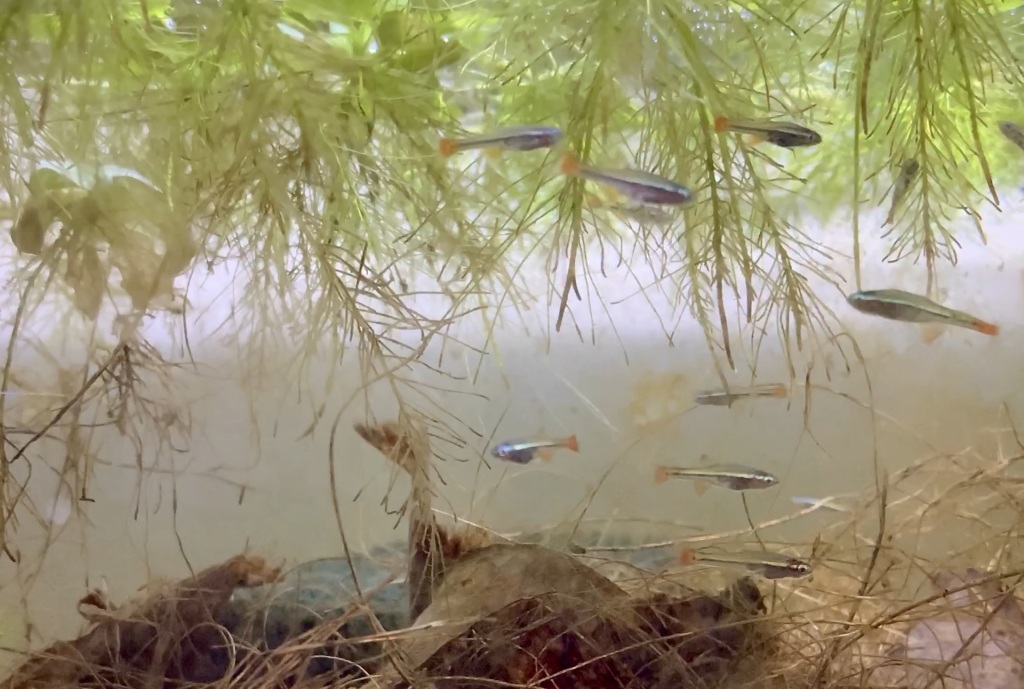
First batch of fry! I counted 7 but there may have been more. Newly hatched, they usually remain motionless and resemble tiny glass splinters with two tiny eye dots. At around 3mm, and are a lot less developed than livebearer fry. Half of the visible fry were in the cover of floating plants, while the other half were just hanging out in the open looking like tasty snacks. 

Day 7

I counted at least 15 fry but there may have been more that I couldn’t see. Most of the fry were free swimming at this point. Unfortunately my infusoria culture wasn’t ready to be harvested so I had to feed them finely resuspended spirulina powder and Liquifry No.1. They didn’t seem too keen on Spirulina powder but were much more active after adding Liquifry. 

Day 14

All fry are visibly eating microworms and finely ground dry granules.

Day 31

Fry are about 8mm long and feeding primarily on microworms and finely ground dry granules.

Day 60

New RO/DI system

RO/DI water is almost pure and has several uses in fishkeeping especially in marine aquariums. In freshwater aquariums, RO/DI water can be used routinely in auto-top-offs to prevent GH/KH accumulating when topping up due to evaporation. Carefully mixing London tap water with RO/DI reduces water hardness to better replicate some conditions found in the wild. This is especially important to encourage natural behaviours of many of the fish species we keep and increase spawning rates.

A downside to using RO/DI is the wastewater produced by the process. For every 1L of pure water produced, around 3L of high TDS water is “wasted”. Most places I’ve seen including our research labs simply dispose of the waste water down the drain, but at home this water can still be used for anything that doesn’t require low TDS like cleaning or watering plants.

Anyway, now that it’s set up I wonder why I didn’t have this before. It’s so convenient compared to carrying barrels of water from the aquarium shop (or from work ) and super easy to get going. You can plumb it into your main water line with a self piercing saddle valve, or attach to an outside hose tap like I did.

I bought mine from Vyair (UK) and they were super helpful in advising me on how to set up my unit. Mine is the RO-100M, currently using without a resin stage as I don’t need ultra pure water, but nice to have the option in case my needs change.

Bringing the 6-year old Shure SE846 into 2020

I’ve always been a massive fan of IEMs ever since my first pair of Shure SE315’s I bought a decade ago, and still use my second-hand SE846’s on a daily basis. The SE846 retains Shure’s signature slightly mid-forward/relaxed treble sound signature but is also able to deliver subwoofer-like performance when tracks call for it. I’ve yet to try another IEM or even full sized headphone (maybe apart from the Nuraphones) which is able to deliver such a visceral bass presence without muddying up the mid range.

The removal of the 3.5mm headphone jack from recent phones led to a widespread move to bluetooth audio and increased availability of almost perceptually lossless bluetooth audio codecs. Being utterly in love with the SE846’s sound and form factor, I naturally explored newer options (some borrowed, some bought) to use my now 6 year old IEMs with modern sources.

The SE846 uses a standard MMCX connector on each IEM which is a godsend, allowing the user to replace the cable (which is the part most likely to fail) independently of the driver. The particular MMCX implementation of Shure’s IEMs (and most other makes on the market) allows for third party cable solutions. Thankfully, the MMCX standard is widespread enough that there are plenty of bluetooth adapters available on the market. I have tried three solutions over the last couple of months which I’ll discuss here:

  1. Shure RMCE-BT2 (MMCX Bluetooth cable)
  2. FiiO BTR5 (Bluetooth DAC)
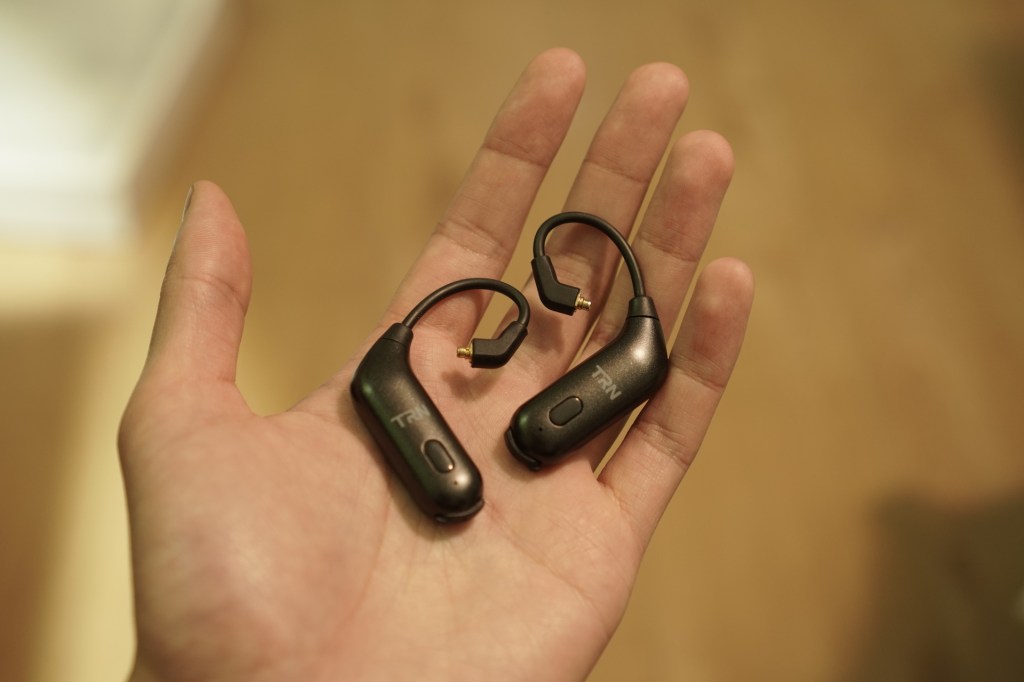
  3. TRN BT20S (True wireless adapter)

Sources: iPhone (AAC), Mac (APTX), Samsung Galaxy S10 (to test LDAC on FiiO BTR5)
Lossless M4A music library

Shure RMCE-BT2 (~£108)

Shure RMCE-BT2 Cable

Apparently one of the better bluetooth MMCX cables, supporting Bluetooth 5.0 along with bluetooth audio codecs including SBC, AAC, APTX, APTX-HD and APTX-LL. The Shure RMCE-BT2 is slightly larger than other bluetooth cable designs due to the battery and amp “module” which both wires emerge from. According to Shure, the reason for this was due to the separation of the Bluetooth audio chipset and DAC which allows Shure to use a higher quality DAC/amp as well as to separate components to prevent noise. The BT2 cable also has a mic and buttons for calls/music controls which feel fairly standard and comparable to cheap-o bluetooth cables available on Amazon.

Driving the SE846’s with the BT2, I can’t fault the sound quality of this cable. For testing at home, I listened to my lossless library over Bluetooth AAC (iPhone) and APTX (Mac). Some may complain of the lack of LDAC support (the highest quality Bluetooth codec available) but honestly the difference between LDAC and other advanced bluetooth codecs is negligible to me. The noise floor of the BT2 is also excellent, however the cable-based implementation and the slightly chunky design results in cable microphonics while walking or moving. The BT2 also has a fairly low output level (volume) which isn’t a problem for low impedance balanced armature IEMs but can be a problem with harder to drive units. The price of the BT2 is also well above comparable solutions and I personally wouldn’t spend this much with so many alternative options available, even if they don’t separate out the Bluetooth chipset and DAC like the BT2 does.

Fiio BTR5 (~£140)

FiiO BTR5 Bluetooth DAC with Shure 3.5mm to MMCX Cable

The FiiO BTR5 is a super versatile bluetooth/USB-C DAC supporting all major bluetooth audio codecs and a wide range of configurations including 3.5mm and 2.5mm balanced audio outputs. In terms of pure sound quality, the BTR5 driven from USB-C input is probably the most transparent DAC/Amp solution I have and the output is clean and noise-free even for sensitive balanced armature IEMs. The BTR5 can also be controlled either with on-device controls or the FiiO Music App which allows the user to save EQ profiles onto the device, change basic functions like power-off timer, whether the device charges when plugged in and even low-pass filter/harmonic compensation implementation which is nice to have but probably far too technical for most users including me.

As for my personal use case, the BTR5 is great for listening sessions when I have the luxury of not travelling/doing something, however for everyday usage, the fact that I have to plug a cable in and have yet another device in my pocket isn’t great. Being a cabled solution, microphonics/tangling is an issue and while the device/cable solution is more portable than an over-ear headphone, the setup is not convenient to use everyday. The BTR5 is the most expensive solution I have, but its versatility, sound quality and ability to drive sensitive IEMS all the way up to high impedance over-ears makes it handy to have around.

TRN BT20S (~£50)

TRN BT20S MMCX Bluetooth Adapter

The TRN BT20S (not to be confused with the older BT20 which uses a completely different chipset/amp) is a true-wireless MMCX adapter supporting Bluetooth 5.0 and the SBC, AAC and APTX codecs. Unlike other true-true-wireless earbuds/IEMs, the BT20S doesn’t come with a charging case so charging is handled by a micro-USB port on each adapter. A dual-head micro-USB cable is provided, and while it’s not the most elegant solution, it is fully independent of a proprietary case for charging. USB-C would have been nice, but I’m currently just thankful that such a device exists in the first place.

Right off the bat, the BT20S is both the worst and best sounding solution of the three that I’ve tried.

The biggest problem is the noise floor/hiss, which is painfully obvious on the low impedance SE846 and also a problem on other Shure IEMs. During listening, the hiss doesn’t bother me too much as it’s masked by the sound of whatever is playing, however it is more noticeable in classical music or songs with a quiet sections or wide dynamic range. As for the sound itself, my SE846’s sound every so slightly brighter with the BT20S compared to my FiiO BTR5 while at the same time, details and timbre of instruments were slightly more difficult to resolve. This was only apparent when comparing the two directly, and in everyday use the sound quality of the BT20S was great.

Despite being the weakest solution I tried in terms of sound quality, the BT20S is the current daily driver for my SE846s. It was only when I started using the BT20S did I realise how much noise/rustling was picked up by other IEM cables I’ve been using over the years. Being on-ear and devoid of trailing cables, the isolating effect of the BT20S is hard to explain but contributes to the IEMs feeling like they just disappear leaving you surrounded by music. Most importantly, the lower noise transmission from walking/movement allows for a comfortable listening experience at lower volume levels.

The future

The perfect MMCX solution (imo) would be something like the BT20S with the noise floor and audio quality of the FiiO BTR5, possibly with longer battery life and as a bonus, an implementation of noise cancelling/sound passthrough feature frequently seen on over ear headphones. FiiO has a variant of the BT20S (the UTWS1) which claims to improve the noise floor issue, however it is still not recommended for sensitive IEMs. Hopefully the next iteration of the BT20S will at least resolve the noise floor issue and also bring USB-C charging, but for now the BT20S are good enough.

dGPU Low Performance Bug in MacOS 10.13 High Sierra

With every release of Mac OS comes a host of bugs and issues for users. A particularly annoying one in Mac OS High Sierra (10.13) involves the dGPU underperforming in graphically intensive applications after the system has been asleep for a few hours.

Users typically report a massive drop in FPS in games and performance drops in applications which require dGPU. I’ve linked some of the reports of this issue below. As far as I’m aware, Apple have not acknowledged the issue despite it being a problem since the GM release of 10.13 High Sierra. The 10.13.2 beta does not solve this issue.

https://forums.macrumors.com/threads/2017-mbp-15-radeon-gpu-does-not-work-after-resume-from-long-sleep.2076334/
https://discussions.apple.com/thread/8122451?start=0&tstart=0
https://forums.macrumors.com/threads/high-sierra-and-games.2076031/
https://us.battle.net/forums/en/d3/topic/20759376280

The Problem

If the user tries to play a graphically demanding game on a 2016/2017 MacBook Pro with either Radeon 450/455/460/550/560 dGPU after the system has been in sleep mode, they will typically see a ~50% reduction in FPS. Rebooting the system temporarily resolves the issue, but the problem reappears after the device has been in sleep for a few hours.

In normal operation, running Unigene Heaven benchmark activates the dGPU and results in high utilisation causing a power draw of ~32W, which is expected and similar to utilisation in macOS Sierra (10.12).

After resuming from system sleep, running Unigene Heaven again activates the dGPU, but the frame rate has dropped by ~50% and the power draw of the dGPU is now ~14W.

Restarting the system will fix the issue until the system sleeps again.

Screen Shot 2017-11-12 at 12.47.57

I’m able to reproduce this problem in all games that use the dGPU on my system, including Alien Isolation, Cities Skylines, Borderlands 2, Hitman Absolution, Dying Light, Team Fortress 2 among others.

Quick Fix

A temporary workaround to this issue is not allowing the system to sleep. Using a utility like NoSleep prevents your MacBook from sleeping when the lid is closed. Obviously this comes with a power consumption penalty when the system is idle or being transported, but depending on your routine it may work for you and easier than rebooting the system multiple times a day.

Automatic Graphics Switching woes on the Macbook Pro

Apple has used multiple GPU’s in their 15” MacBook Pro’s since 2011, and have also implemented a system to automatically switch between the slower but power efficient integrated GPU (iGPU) and higher performance discrete GPU (dGPU) depending on what the user’s applications require.

At first, many applications didn’t play nice with automatic graphics switching and unnecessarily activated the dGPU when it was clearly not needed. A well known example was the official Twitter application, which kept the dGPU running constantly when open, resulting in dramatically decreased battery life and increased system temperature.

Thankfully, most popular Mac OS applications behave themselves on systems with multiple GPUs and don’t activate the dGPU unless they actually require the higher performance. For example, Steam games and Adobe Photoshop activate the dGPU, but Evernote, MS Office and Spotify rightfully do not. However, there are a few applications that still stubbornly activate the dGPU upon opening, and keep the dGPU running as long as they’re open (even when in the background). The Radeon Pro 460 dGPU on the 2016 MacBook Pro idles at ~3W which is quite low for a dGPU, but 3W is still significant especially if it means the difference between 5 hours or 9 hours of battery life.

Screen Shot 2017-04-06 at 16.53.13
Idling with the dGPU on has a power/battery life cost

This small trick can prevent specific applications from activating the dGPU. I’m going to be using an app called Mendeley for this example. Mendeley activates the dGPU when open, and being a reference manager and PDF reader, I see no reason for the application requiring the extra performance a dGPU provides.

1) Navigate to the Applications folder

2) Right click Mendeley and select “Show Package Contents”

3) Click on “Contents”

4) Right click “Info.plist” and open with TextEdit

Screen Shot 2017-04-05 at 23.38.40

5) You’ll see something like this. You’ll want to paste the following (highlighted text in image) into the file

6) Save and close Info.plist

7) Open Mendeley and enjoy the extra 2+ hours of battery life by keeping the dGPU off

Every time Mendeley is updated, you’ll need to re-do this “mod”

For me, this method has worked for Mendeley, Graphpad Prism and Adobe Reader (for Adobe Reader you’ll need to find the helper application and change the info.plist file for that too). Some websites can activate the dGPU depending on the services they request, such as Facebook chat. I’m not sure how to stop this from happening (Facebook chat shouldn’t really be using my dGPU), so if anyone knows how to prevent this I’d love to know.

For those who want to keep an eye on which GPU is being used in their Macs, there’s a handy menu bar application called gfxCardStatus by Cody Krieger that can notify you when the system switches between GPUs. Within the application you can also force the integrated or discrete GPU, but there are limitations as he describes here.

I don’t think I should conclude about the “state of graphics switching in Mac OS”, as Mac OS and applications are constantly being updated and things should improve over time. Developers should be aware of the power cost of their applications, especially when a single application unnecessarily activating the dGPU on a MacBook Pro can cut battery life in half.

On the hardware front, integrated GPUs are currently not fast enough and discrete GPUs can’t idle low enough, so the solution naturally is graphics switching. Maybe someday in the future we’ll have a single GPU that can span the entire power/performance range that consumers and Apple are looking for today, but for now we’ll just have to put up with the minor niggles of graphics switching, such fun.

Role of Plants in the Nitrogen Cycle (in the Home Aquaria)

Possibly the most persistent myth in the aquarium hobby is the belief that the primary role of aquatic plants in the nitrogen cycle is to uptake nitrates. This has been repeated many times in older aquarium literature, but frustratingly many recently published sources (including books) incorrectly describe the role of plants in the nitrogen cycle. Understanding the “correct” nitrogen cycle in an aquarium has important implications to planning and maintaining a planted aquarium.

Nitrification

screen-shot-2017-02-21-at-22-35-28
Nitrification Simplified

It is widely accepted that nitrification (converting harmful ammonia into nitrites and then nitrates) is carried out by nitrosomonas and nitrobacter, aerobic bacteria which are present in the soil and water attached to surfaces. The chemical process from converting ammonia into nitrites and then to nitrates releases energy, which the bacteria use for their metabolism.

The Role of Aquatic Plants in the Nitrogen Cycle

Aquatic plants require nitrogen to synthesise proteins, and can only use nitrogen in the form of ammonia. Indeed, plants can uptake nitrates, although they must convert nitrates into ammonia before they can use the nitrogen, a process which requires significant energy (the same amount of energy nitrifying bacteria have gained from the opposite reaction).

Experiments have shown that when given both ammonia and nitrates, aquatic plants will only uptake nitrates when ammonia has been depleted. When aquatic plants are given a choice between ammonia and nitrates, most aquatic plants vastly prefer the uptake of ammonia over nitrates even if this means “competing” with nitrifying bacteria.

screen-shot-2017-02-21-at-22-35-09
Bacteria gain energy from nitrification, while plants must spend energy to obtain ammonia

Implications for the Home Aquarium

The uptake of ammonia by aquatic plants has practical implications for the aquarist. Most importantly, it de-emphasises the importance of a “biological” filter in aquaria with healthy fast growing plants. Although essential in aquariums without plants or with very little plant growth, many would argue that the biological filter is an unreliable way of dealing with ammonia in an aquarium. Nitrifying bacteria require plenty of flow and oxygen, can be sensitive to changes in water chemistry and their growth is very slow (division ~18 hours), during which time ammonia “spikes” can occur if there are any rapid changes to stocking or feeding levels. Nitrification also causes nitrate levels to increase and pH to fall, two reasons why frequent water changes are necessary in aquariums relying on the biological filter for ammonia control.

Using fast growing (especially emergent) plant growth in an aquarium is a considerably better way of controlling ammonia than a biological filter. Most aquatic plants prefer the uptake of ammonia directly compared to nitrates, and by competing with nitrifying bacteria, can prevent the buildup of nitrates in the aquarium. Competition with nitrifying bacteria for ammonia, rather than the direct uptake of nitrates may be the reason why aquariums with plants have lower nitrate levels than those relying on the biological filter. Acidification of aquarium water due to nitrification can also be prevented by using plants for ammonia control, as they compete with nitrifying bacteria for ammonia and consume H+ ions in photosynthesis.

As Diana Walstad said in her book, Ecology of the Planted Aquarium, “let the plants do the work for you!”.

2017-02-25 19.51.35.jpg
Letting the plants do the work for me in my no-maintenance planted Walstad Bowl

Split-Blade Fans and Dust in the “Touchbar” MacBook Pro

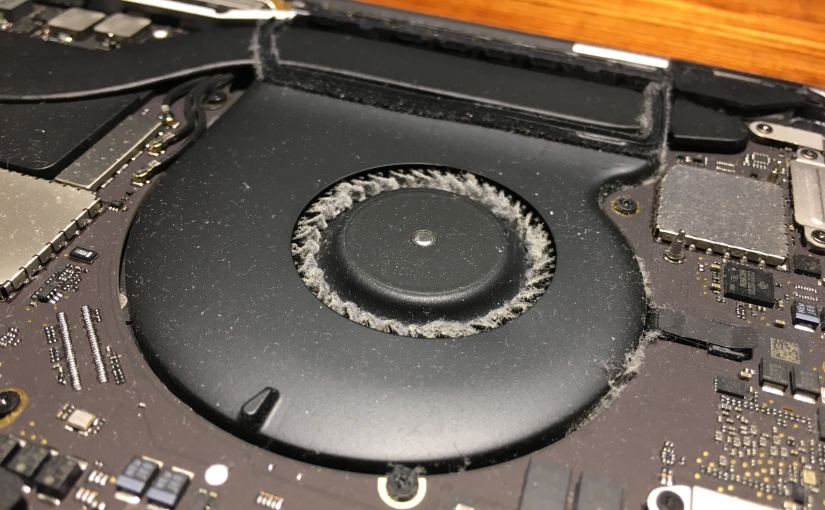
I noticed that the fans in my 15” 2016 “Touchbar” MacBook Pro have been making a strange rattling sound when they spin up, so I decided to open it up and investigate. The first thing I noticed was the dust build up on the fan blades, which was surprising for 2 months of normal use. This might be due to the “split-blade design” Apple uses on their 15” MacBook Pro fans.

The split blade design basically means that half of the fan blades on each fan are smaller and spaced in such a way that they slot into the wider gap left by the larger blades. According to Apple, this allows them to fit more blades in the same fan diameter (70 blades vs 50 on the 13” Touchbar MacBook Pro without the “split blades”) and should increase air flow per revolution. I think it would be interesting to test whether split blades are actually any better than normal blades, but I don’t have the equipment to test this so hopefully someone out there could shed some light on this.

Screen Shot 2017-03-18 at 21.11.38.png
Fan before and after cleaning. Notice the “split-blade design”.

Cleaning out the dust build up using a cotton bud and vacuum cleaner (making sure that the fan is kept stationary to avoid burning out the motor) solved the rattling problem completely. The rattling was possibly caused by rotor instability, as dust would have caused the fan to become unbalanced at higher RPMs. Although system temperatures remained the same as before, RPM has decreased after cleaning indicating that the fans are doing a better job of cooling the system down.

This is the second time I had to clean out the fans due to this problem. Usually it takes about 2 months for dust to build up enough to noticeably affect cooling and noise performance. The smaller gaps and larger surface area of the fans may be contributing to the faster dust build up on the blades, in some cases blocking the airflow completely. I’ve never seen this problem arise so quickly in my previous Mac notebooks (without split-blades), so this is my best guess. Either Apple needs to optimise their cooling design in their next iteration, or I just need to get the duster out more often.

In the meantime, I’m thinking of a small modification to add an easy to clean/replace filter on the air intakes without affecting cooling performance.

Easy-Peasy Amazon Biotope Aquarium

Biotope

There is something quite rewarding about setting up a biotope tank. With high lighting, dosing and CO2 readily available to more everyday hobbyists, it is tempting to go the purely artistic route and select plants, fish and decor for our tanks that look nice and have aesthetic appeal together.

But sometimes, it’s nice to limit choice and select flora and fauna originating from a specific environment. A biotope aquarium can be like having a slice of natural habitat in your home, and more often than not the fish display natural behaviours and colours rarely seen in more “ornamental” tanks.

I think the Amazon blackwater biotope is the easiest to set up and maintain, especially as it’s not dependent on submerged plant growth which many beginner hobbyists struggle with. The Amazon blackwater biotope is characterised by slow flowing dark, tannin-stained water, little to no submerged plant growth a substrate covered with leaf litter at varying stages of decomposition. Fish species are varied, including many species of tetras, corydoras and otocinclus.

Hardscape and Fauna

Keeping the layout simple, I used a shallow layer of sand covered with catappa leaves and a piece of driftwood. I decided on a shoal of cardinal tetras for this tank, an obvious choice for an Amazon biotope. They acclimated extremely well and coloured up fully within an hour of introduction to the tank. The Otocinclus I added were also quick to acclimate to the tank, and within hours they were swimming around and feeding among the leaf litter.

2016-02-20-22-34-17
Cardinal Tetra

2016-02-20-22-27-26
Otocinclus

It took me a while to decide which “showcase fish” to add to the tank, as many Amazon biotope aquariums I’ve seen either contained a huge shoal of tetras, Discus or Angelfish. None of these would be suitable for the size of my tank, so I decided to add a small group of Bentosi’s Tetra, a deep bodied species of Tetra with very interesting white-tipped finnage. Like the other fish, the Bentosi’s acclimated much faster than I’m used to and the following morning they were showing breeding behaviours among the roots of floating plants.

2016-02-20-22-28-16
Bentosi Tetra

I also added various snails and cherry shrimp, although not specifically from the amazon, their versatility and readiness to breed make them extremely useful in any tank.

Water Conditions

I’m using standard dechlorinated tap water in this tank with a pH of 7.4, although decaying leaf litter tends to reduce pH to 6.5. The leaf litter is also responsible for staining the water a brown colour, mimicking the natural habitat. Cardinal tetras require a temperature of ~26-28ºC, which is higher than most other tropical fish which do well at 24ºC. I used an acetate lid to reduce heat and evaporative loss, without which I’d lose almost 2 litres a week. The lid also has the effect of increasing the heat and humidity of the air surrounding the floating plants, which may be beneficial to plant growth. I’m dosing APF’s Trace/Macro EI solution, although only 1/4 of the recommended dose and adjusting according to the condition of duckweed (or “duckweed index”). I think that any old aquarium fertiliser providing trace elements and potassium would work here, as nitrates and phosphates are quite high in London tap water anyway.

Plants

I decided to use the floating plants water lettuce (Pistia), duckweed (Lemma), Salvinia and Amazon Frogbit in this tank, as they are commonly found among the banks of the Amazon river. In the aquarium, they serve a useful function of biological filtration, drastically reducing the need for a bacterial based biological filter to remove ammonium. This is advantageous as nitrifying bacterial filters take time to develop, lower pH as they work and produce nitrates which accumulate over time (nitrate creep). Plants absorb ammonium from fish waste directly, and use it to produce their own biomass. In this way, the hobbyist can “remove” nitrogen from the aquarium simply by pruning plants. The roots of water lettuce and duckweed also provide a huge surface area and substrates for bacterial colonisation, and it is likely that nitrifying bacteria are also present here, although I suspect much of the ammonium uptake is by the plants themselves.

I find that my heavily planted tanks don’t suffer from nitrate “creep” at all, unlike my lightly planted goldfish tank which relies on a bacterial filter for nitrification and requires weekly water changes to keep nitrates in check.

I found that the Pistia got quite large (30cm across) despite being indoors, which I can attribute to either the high humidity under the acrylic sheet or the high lighting from the LEDs (more on this below). After a certain size, Pistia starts producing small white flowers about 10mm long from the centre of the rosette. In my other tanks exposed to “room air” and with lighting suspended higher over the tank, the water lettuce would only grow to about 7cm across and produce no visible flowers at all.

2016-02-24-21-41-22
Water Lettuce (Pistia) Flower

Lighting

Relying to plants for biological filtration requires rampant healthy growth. A straggly piece of elodea probably won’t do much to reduce ammonium levels. To encourage fast plant growth, I’m using two TMC Aquaray 400 tiles at 12W each mounted about 20cm above the tank, which should provide considerable PAR at the surface and mimic the tropical sun. Normally for a tank this small I would not run these lights over 40% unless I knew I could keep CO2 levels stable enough to prevent algae growth, but the dense shade provided by the floating plants as well as the tannin stained water prevent excessive light from reaching the substrate or front glass, and I never have problems with algae.

One of the factors that makes a blackwater biotope tank so easy is that algae growth is low. You can throw tons of light onto the tank to encourage fast growing floating plants to out-compete algae, and the tannin stained water prevents excessive light from reaching submerged surfaces.

Circulation

Whichever method of circulation I used in this tank, I wanted it to be very gentle to represent the slow moving blackwater habitats. Slow water movement also allows the leaf litter to settle nicely and not get bunched up in a corner of the tank. Originally, I decided to use an airstone in the corner to provide some water movement, however this produced tiny droplets which covered the leaves of Pistia with tannins and biofilm. The airstone was also very loud which was a no-no for my bedroom.

The tank is now circulated by a fairly cheap 100l/h internal filter, with a spraybar attachment to distribute the flow more evenly. A simple coarse sponge is used in the media compartment, simply to prevent snails and debris entering the impeller shaft.

2016-02-20-22-34-26
Full Tank Shot

I suppose the main reason for this post was to demonstrate how easy it is to set up and maintain a biotope aquarium like this. With the availability of CO2, nutrient dosing and ever more complicated filtration and equipment, it is easy to get caught in the high-tech trap. This biotope is the opposite, with only the most basic of equipment, low running costs and minimal maintenance. Oh and lots of leaf litter and happy fish.

Turning off transparency to improve Mac OSX 10.10 El Capitan performance

I remember upgrading to Yosemite last year and immediately realising my Mac’s performance deteriorate. Battery life was significantly shorter and switching between spaces and windows was sluggish. It seemed like all the improvements to battery life and performance made in Mavericks was to offset the bloated mess that Yosemite turned out to be, and that didn’t sit well with me. Turning off transparency effects in Yosemite resulted in a drastic improvement in UI performance and general system responsiveness especially on HiDPI displays.

The El Capitan update to OSX brings numerous refinements and improvements to OSX, including much better UI performance, so I decided to turn transparency back on to see whether my Macs could handle it (a 2013 Macbook Air and 2015 13” Macbook Pro). To my surprise, even with transparency on, both Macs managed to maintain a smooth 50-60FPS while navigating the UI (mostly). So that’s the performance issue fixed, but I’m not happy yet.

Transparency in my opinion adds very little to the user experience in OSX (and to some extent iOS). Yes, translucent side bars and window chrome that shows the content below as you scroll looks cool, but it doesn’t give you any more information about what your UI is doing. Worse still, translucency can make certain UI look worse; the menu bar being a prime example. Depending on your background, text on the translucent menu bar can be almost illegible and menu’s require you to look at them for a fraction of a second longer to make sure you’re clicking the right option.

Screen Shot 2015-10-15 at 21.07.42

I know that a menu is “on top” of a window because it is covering it, and maybe it’s casting a shadow too. Being able to see a translucent blur below the menu tells me nothing extra about what’s going on.

Then there’s the power cost of fancy translucent effects. El Capitan may have solved the performance problem, but I’m sure the system is using more power to run these effects, and the user will have to pay a battery life penalty. Mavericks made huge improvements to power efficiency in OSX, it’s a shame to waste that on fancy translucent effects that don’t serve a useful function and at times can look horrible.

The Test

To evaluate the performance cost of translucency effects, I’ll be using my early 2015 13” Retina Macbook Pro (i7, 16GB, 512GB) with display scaling set to 1440×900 (which I believe is what most people would be comfortable with, 1280×800 is not enough). I’m running OSX 10.10.1.

The test will consist of tasks with translucency on and off. I will then measure GPU utilisation with the iStat Menus utility which also shows framerate, although framerate is highly variable so you’ll just have to take my word for it that it’s 50-60FPS. I’ll try to measure GPU power, although that’s also quite variable too. This is also far from a scientific test, so take these results with a pinch of salt.

Screen Shot 2015-10-15 at 21.59.15

Right off the bat we can see that in almost every scenario looked at, GPU utilisation was considerably higher with translucency turned on. Scrolling through a thread in mail was especially taxing with translucency on, resulting in a noticeable frame rate drop. The Calendar scrolling task doesn’t have any translucent UI to trigger while scrolling, so unsurprisingly there is negligible difference in GPU utilisation. It’s worth noting that while displaying a static image (i.e. while reading a web page), GPU utilisation was essentially 0%. However, if you’re watching a Youtube video and part of the video gets caught under the window UI, GPU utilisation will increase dramatically. If you’re trying to squeeze every last drop of battery life from your Mac, leaving translucency on is like walking on eggshells.

I was unable to quantify the increased power consumption caused by leaving translucency on, but we can infer that increased utilisation of the GPU will result in higher power draw. This will be significant in everyday use, I for one know that I spend a considerable amount of time scrolling through documents/Facebook etc. When trying to extend battery life, you want to keep utilisation as low as possible to maximise the time hardware can spend in idle or power gated states, and translucency does nothing to help this.

I hope that Apple one day decides to grow out of this “Windows Vista” moment and embrace efficiency again, but for the time being, I’m glad they gave us an option to turn these effects off.

Screen Shot 2015-10-15 at 22.13.04

Oh, to turn these effects off in OSX: System Preferences > Accessibility > Display > Reduce Transparency

In iOS: Settings > General > Accessibility > Increase Contrast > Reduce Transparency

App Tamer (1.3.2) Review

Most Applications for OSX behave politely in the background, sitting idle and consuming very little CPU time. There is the exception however which continue to use CPU even while in the background and seemingly doing nothing. Not only are these applications reducing performance of foreground tasks, but the additional workload also reduces battery life and increases heat.

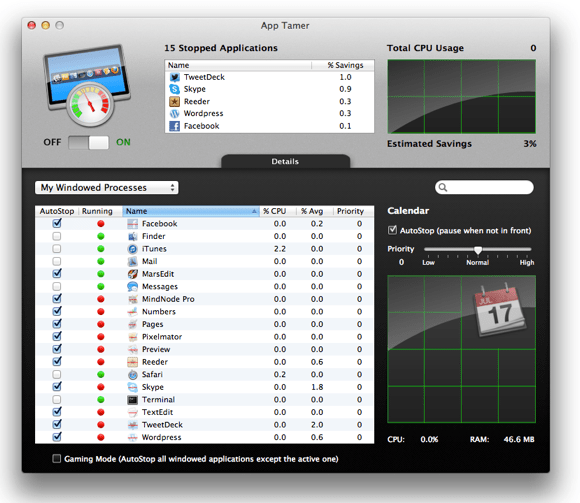
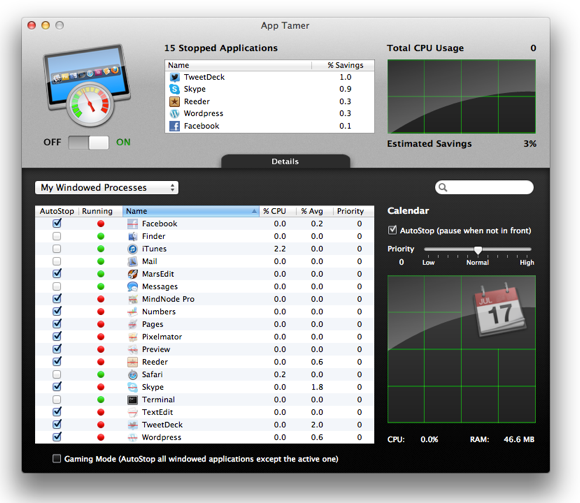
Screen Shot 2013 02 16 at 16 57 01

Control rampant background apps with App Tamer

Screen Shot 2013 02 16 at 18 11 01

The purpose of App Tamer is quite simple, “pause” selected background apps to prevent them from using CPU, then instantaneously resume them when you need them. My workload involves having almost all of my frequently used applications open at once, and switching between them as I work. Of course, you probably won’t want to do this on a Windows computer, but the “Mission Control” feature in Mountain Lion makes it feasible work like this (8GB of RAM and an SSD probably help as well).

The problem is that normally, I only use 1 or 2 apps at a time, and those in the background are constantly using CPU. Idling on the desktop, CPU usage with all apps open is ~15% (with Skype contributing to ~7%). Idle CPU usage should ideally be closer to 5%.

Screen Shot 2013 02 16 at 17 06 04

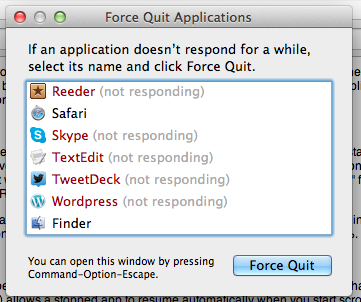
Spinning Beach Ball

Apps which have been stopped by App Tamer will appear as “Not Responding” by the OS, and unless you switched to that particular app, it would be completely unusable. A recent update (1.3.2) allows a stopped app to resume automatically when you start scrolling, useful if you’re working on two windows side by side.

A Few Tests

Battery Life, With and Without App Tamer

NewImage

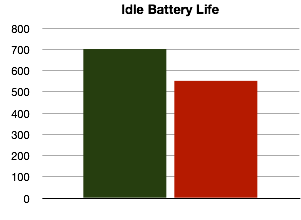
Idle battery life shows a huge difference, with the CPU able to spend more time in C4 sleep state. This test was done on a Core 2 Duo MBP, newer Sandy Bridge/Ivy Bridge MBPs may see an even larger difference due to lower idle power consumption. 

NewImage

Light workload includes web browsing, watching a few videos etc. Still a reasonable difference in battery life.

NewImage

The heavy workload involves scanning a PDF using OCRKit, a task which stresses the CPU, Memory and read/writes to the SSD. Graphics is mostly idle in this test. Very little difference due to maxed out CPU, although with lower background CPU usage, the task may have fished quicker.

Idle CPU Temperatures (Room Temperature 26 degrees C)

NewImage

Notebook left to idle for 15 minutes at room temperature. Fan = 2000RPM.

What to Stop

Generally, you would want to stop only windowed applications that you’ve installed, and leave background/system processes alone. Apps for media playbacks such as iTunes, QuickTime, Movist etc shouldn’t be autostopped (doing so would stop playback when the application is in background).

Safari is a good one to autostop for example, leaving a Facebook tab open while in the background causes the browser to use ~7% CPU. App Tamer is smart enough to let downloads finish before stopping Safari.

Evernote can be autostopped, though if you use services which integrate with Evernote (such as clippers etc), these would “freeze” while they wait for Evernote to respond. This is also the reason why the Finder shouldn’t be autostopped.

Twitter and Tweetdeck can be autostopped safely, though obviously you lose the ability to update tweets/mentions etc in the background. However, App Tamer can “wake” stopped background apps at specified intervals to allow them to update/free memory etc.

Skype is an interesting one. While it isn’t an app I’d recommend autostopping, idle CPU usage is so ridiculously high that I find it beneficial to autostop it, saving ~7% CPU in the process. Although receiving calls becomes impossible.

Photoshop (and to less extent, Pixelmator) also have unusually high idle CPU usage. These applications are perfect for autostopping.

Fluid App

Fluid is a OSX app which allows you to create “applications” from websites. These applications are separate from Safari, allowing more granular over autostop. As of 1.3.2, support for Fluid is quite patchy but an update to fix this is on the way.

Pricing

At ~£13.14 GBP (inc VAT), App Tamer is reasonably priced for what it does. Of course, if your workflow doesn’t involve many applications open in the background, then App Tamer would make very little difference. However, I would assume most users would benefit from App Tamer, even if you don’t have a plethora of apps open. Simply having Photoshop running in the background utilises 5% CPU, and quitting/restarting the app would be slow (and probably use more power anyway), and this is where App Tamer really makes a difference. It stops apps in the background, but keeps the process open, so that the moment you need to use the app, its ready.

Find App Tamer here!

http://www.stclairsoft.com/AppTamer/